2026.4 Release Notes
Last updated: October 28, 2026
For a list of release dates and Sisense's end of support schedule, see Sisense Version Release and Support Schedule.
For information about the Sisense gradual rollout process, as well as an explanation of how the versions and release notes relate to content added during the rollout, see Sisense Gradual Rollout Process.
Versions Documented in these Release Notes
Regarding Salesforce Security Updates to the "Use Any API Client" Permission:
-
For customers using Sisense connections to Salesforce, it is important to note a significant Salesforce change and steps that you may have to take for continued correct functionality. See Salesforce “Use Any API Client” Permission Changes: Sisense Impact & Migration Guide.
Regarding Upgrading:
-
Self-hosted MCP Server: If you run the Sisense MCP Server on a self-hosted deployment, upgrade to 2026.4.1 or newer. This version contains a security-related update for the MCP Server. If you can’t upgrade right away, disable the MCP Server until you do. Sisense Cloud customers do not need to take any action.
-
Privacy and Security: Version 2026.4.1 strengthens access controls for user session information. We recommend upgrading to it.
-
Version L2025.4 Service Pack 1 contains an important fix. Therefore, it is strongly recommended to upgrade to SP1 or newer.
-
Customers currently running Sisense versions older than L2025.2.0.249 cannot directly upgrade to versions L2025.3 or newer. You must first upgrade your Sisense installation to version L2025.2.0.510. Only after completing this intermediate upgrade can you proceed to version L2025.3 or newer. This important change is due to Sisense upgrading to MongoDB 8 starting from Sisense version L2025.3.
Note: MongoDB 8 is not compatible with Linux Kernel 6.19 through 7.0.13. Therefore, do not use those kernel versions.
-
To download the latest Sisense version, or to upgrade to an older version, see that version’s Release Notes and contact your Sisense Customer Success Manager for the version package.
-
To upgrade to this version of Sisense:
-
Read the Release Notes of all the versions following your current version, up to and including the version to which you are upgrading.
-
Run a system backup before upgrading. See Backing up and Restoring Sisense.
-
Follow the upgrade procedure in Upgrading Sisense.
-
Privacy and Security Information
This release contains several security related updates. We highly recommend upgrading to this latest release to take advantage of any security-related updates and benefit from the Sisense support and warranty. In addition, Sisense strongly recommends regularly testing and auditing your environment after upgrading, and periodically during your subscription term, to ensure all privacy and security settings remain in place.
Customers are responsible for controlling and monitoring your environments and are therefore in the best position to ensure the correct security settings are in place for how you use Sisense products.
Due to the complexity of Sisense products, we strongly suggest that all customers ensure that you understand how all of the privacy and security settings within Sisense work.
If you use Sisense to store/process sensitive data, it is your responsibility to review and test your implementation to ensure you are not inadvertently sharing data with unauthorized third parties. For more information on data security rules, see Data Access Security.
BREAKING CHANGES - WARNING!
The following is a cumulative list of potentially breaking changes from approximately the past 12 months, and may also include warnings about upcoming changes:
The REST API Swagger/OpenAPI version has been updated, introducing stricter request validation. Requests that do not conform to the documented API specification — for example, those including unrecognized parameters or missing required ones — might be rejected with 422 errors.
Starting with Sisense version 2026.4.0, self-hosted (on-prem) Sisense deployments will use the Sisense-hosted vector database, running on the local Sisense MongoDB instance, for the assistant and Search, replacing customer-managed "Bring Your Own Vector Database" (BYO VDB) configurations. As part of the upgrade to this version, all self-hosted customers currently using a BYO VDB will be migrated to the Sisense-hosted vector database. New self-hosted deployments will only support the in-box vector database; BYO VDB will no longer be available as a configuration option. Managed cloud (SaaS) deployments are unaffected and continue to use the existing hosted vector database (Atlas).
Customers who need to keep using their own vector database should contact their Sisense Customer Success representative before upgrading.
Shared formulas no longer persist or propagate across differing data sources. Workflows relying on cross-datasource formula leakage will need to define formulas explicitly per data source.
Customers using the GenericJDBC connector with a custom dialect Java file will need to recompile and potentially update your code.
All custom dialect files must be recompiled after the upgrade because the underlying Calcite JAR has changed. Even if no code changes are needed, the old compiled .class file may not work correctly with the new Calcite runtime.
To recompile: re-upload the dialect .java source file through the connector management CLI. The system will compile it against the new Calcite JARs automatically.
Breaking API Changes
The following changes may require code modifications in custom dialect files.
1. Operator Comparison Pattern
This was observed for LOG10 but may affect other operators compared using identity (==). The safe approach is to use name-based comparison.
Before:
if (call.getOperator() == SqlStdOperatorTable.LOG10) { ... }After:
if (call.getOperator().getName().equalsIgnoreCase("LOG10")) { ... }Reason: Calcite changed SqlStdOperatorTable from a reflective scan to an immutable multi-map (CALCITE-6024), which altered operator object resolution order. Identity comparison (==) is no longer reliable for matching operators.
2. SqlSelect Constructor - New qualify Parameter
The SqlSelect constructor gained a new qualify parameter (for the SQL QUALIFY clause). The old constructor without qualify still works but is deprecated.
Before (still compiles, but deprecated):
new SqlSelect(pos, null, selectList, from, where, groupBy, having,
    windowDecls, orderBy, offset, fetch, hints);
// 12 parameters
After (recommended):
new SqlSelect(pos, null, selectList, from, where, groupBy, having,
    windowDecls, null, orderBy, offset, fetch, hints);
//             ^^^^ new 'qualify' parameter (null = not used)
// 13 parameters
3. rewriteSingleValueExpr() Signature Change
If the dialect overrides rewriteSingleValueExpr(), the method signature has changed.
Before:
@Override
public SqlNode rewriteSingleValueExpr(SqlNode aggCall) { ... }
After:
@Override
public SqlNode rewriteSingleValueExpr(SqlNode aggCall, RelDataType relDataType) { ... }
Add import: import org.apache.calcite.rel.type.RelDataType;
4. SqlExtractFunction Constructor
The default (no-arg) constructor was removed.
Before:
SqlExtractFunction extractCall = new SqlExtractFunction();After:
SqlExtractFunction extractCall = new SqlExtractFunction("EXTRACT");5. SqlSampleSpec API Change
If the dialect handles TABLESAMPLE, the getter method was replaced with direct field access.
Before:
Float pct = ((SqlSampleSpec.SqlTableSampleSpec) spec).getSamplePercentage();After:
Float pct = ((SqlSampleSpec.SqlTableSampleSpec) spec).sampleRate.floatValue();6. CTE (WITH clause) Body Framing
If the dialect customizes WITH clause unparsing, the CTE body must now be wrapped in a WITH_BODY frame.
Before:
with.body.unparse(writer, 0, 0);After:
SqlWriter.Frame bodyFrame = writer.startList(SqlWriter.FrameTypeEnum.WITH_BODY);
with.body.unparse(writer, 0, 0);
writer.endList(bodyFrame);
Without the WITH_BODY frame, the CTE body gets extra parentheses, producing invalid SQL.
Security
The move to Apache Calcite 1.36.0 addresses all known security vulnerabilities, including CVE-2022-39135 (CRITICAL, CVSS 9.8 - XML External Entity injection). Calcite 1.36.0 has zero known CVEs.
The Report Manager URL has now changed from /reportManager/main.html#/reports to /app/report-manager#/reports. This is necessary only for when embedding the Report Manager directly by URL.
2026.4.0 Release Overview
Cloud Availability
This release is currently only available to cloud customers. It will be released shortly for on-premise availability as well.
As the content is still in progress, it is recommended that you check back here occasionally for the latest updates.
The content below describes the new features, improvements, and bug fixes included in the October 2026, 2026.4.0 release.
What’s New
The following table lists the high-level impact (or potential impact, if any) of new features, and how to handle it if upgrading to version 2026.4.0 or newer. Continue reading the Release Notes below the table for a detailed explanation of these features, as well as improvements and fixes.
| Feature | Issues and Actions to Consider |
|---|---|
| Assistant Sidebar |
The assistant now opens as a collapsible sidebar alongside active dashboards, and supports creating widgets and interacting with results directly in the conversation feed. |
| Bring Your Own LLM - Google and Anthropic Support |
Requires registering API keys for Google Gemini or Anthropic models in the Sisense Intelligence Admin settings. |
| Bulk Two-Factor Authentication (2FA) Management |
Administrators can now view and modify the Two-Factor Authentication status of multiple users at once from the Users table. |
| Compose SDK Version |
|
| Dashboard Narrative |
Requires Sisense Intelligence with a configured LLM to generate automated, real-time AI summaries on multi-widget dashboards. |
| Full Datetime Dimensions for ElastiCubes |
The continuous Days & Time level is not supported on data sources that use a fiscal year. The standard calendar levels and the aggregated Time levels remain available. |
| KPI Chart |
Combines performance metrics, period-over-period comparison values, and sparkline trends in a single widget to save dashboard space. |
| Pulse (Beta) |
Beta. Requires Sisense Intelligence and a configured LLM. Note the limitations documented below. |
| Safe Data Model Renaming |
Display names can be updated without breaking existing dashboards or APIs. Changes are reflected across analytics after the next data model build or publish. |
| Sisense Vector DB & Expanded BYO VDB |
An embedded local database is now used for vector search by default. Custom external Bring Your Own VDB (BYO VDB) options are now deprecated. |
Assistant Sidebar
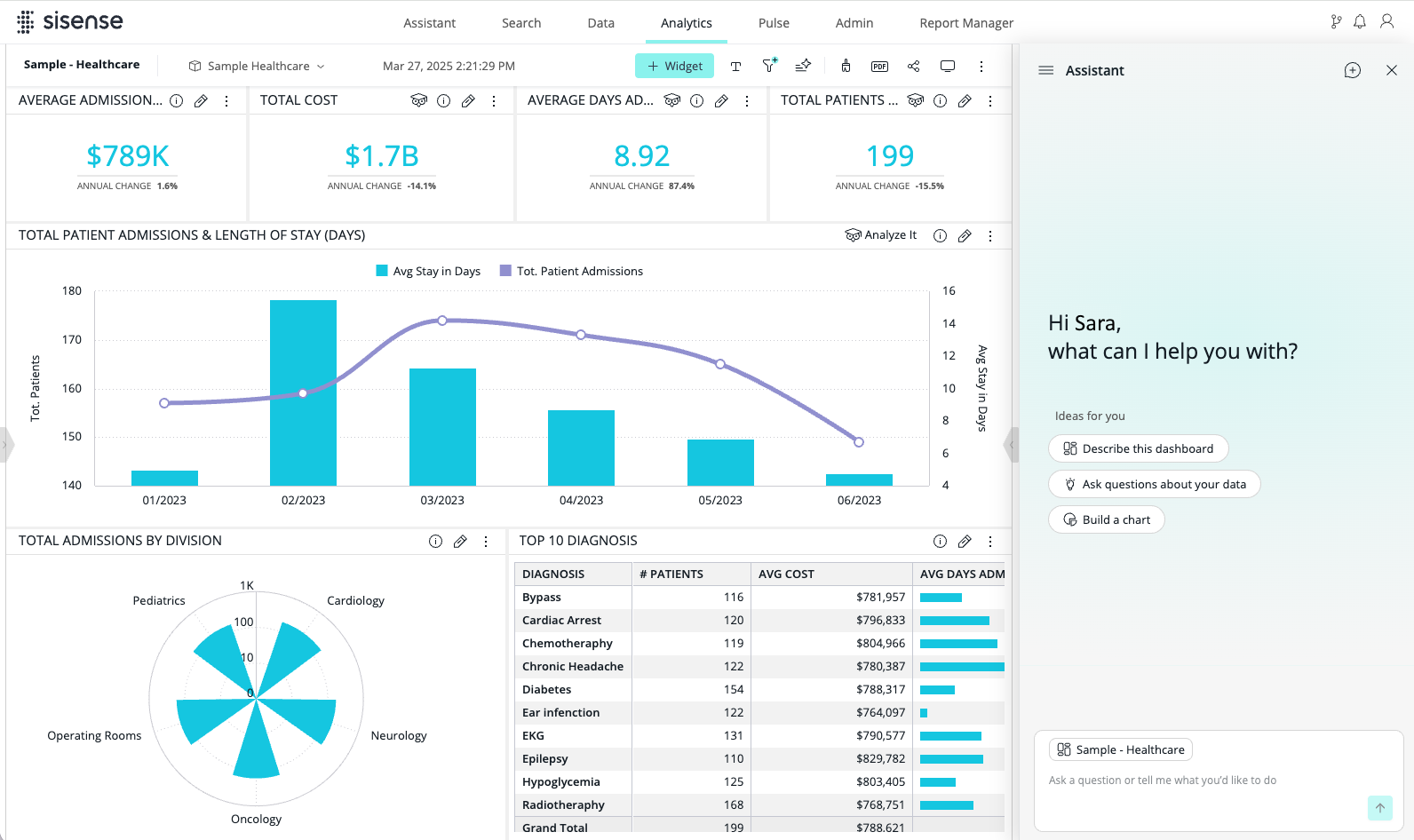
The Analytics assistant has moved from a full-screen modal pop-up to a collapsible sidebar. You can now work with the assistant directly alongside your active dashboards, keeping your visual context while you converse with it.
What's New
-
A floating icon replaces the previous toolbar icon. It opens and closes the assistant side by side with your dashboard, so you can work with both at the same time. You can resize the assistant's width and drag the floating icon to a different position.
-
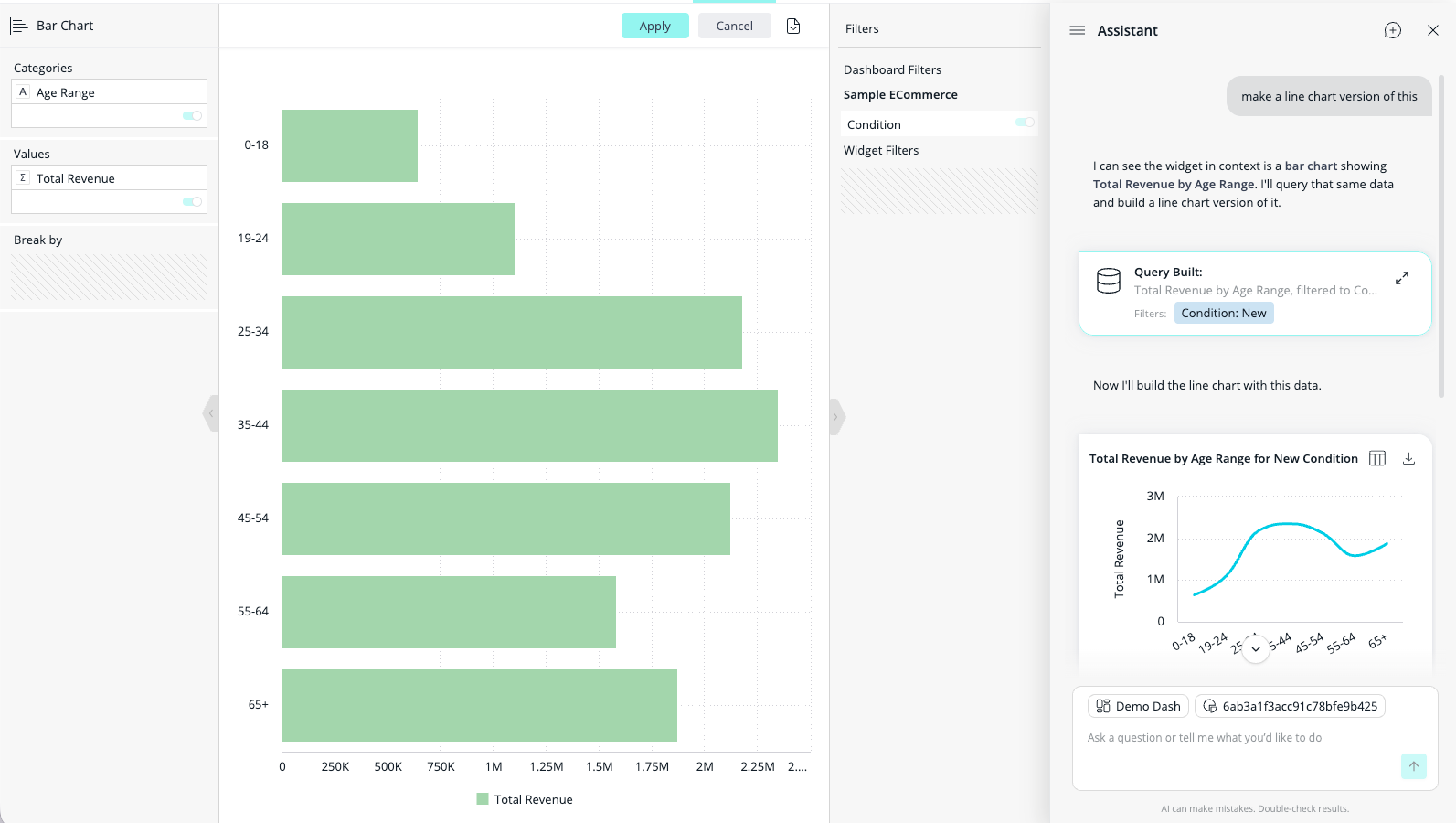
The assistant automatically recognizes the active dashboard and its widgets, so you can create and add more widgets through conversation, depending on your permissions.
-
Charts and other visual output generated in the assistant sidebar render inline in the conversation feed, instead of in a separate canvas.
Note:
In order to optimize the user experience for all user roles, some features previously offered in the full-screen popup are not currently available in the assistant sidebar. These include the ‘Dashboard filters’ toggle, generating widget narratives, and displaying Compose SDK embed code per widget. Users with permission to add widgets to the dashboard may leverage this functionality in the usual way, while these capabilities may be re-introduced in a future release. Please provide any feedback and requests via Sisense customer success or support teams.
Bring Your Own LLM - Google and Anthropic Support
You can now connect your own Google Gemini (Gemini-3.5-flash-lite, Gemini-3.6-flash, Gemini-3.7-flash, Gemini-3.8-flash) and Anthropic (Opus-4.6, Sonnet-4.6) models to Sisense using Bring Your Own LLM (BYO LLM).
Key Capabilities
-
Google and Anthropic Integration: Configure Google Gemini or Anthropic as a custom LLM provider, alongside the existing OpenAI, Azure OpenAI, and AWS Bedrock integrations.
-
Flexible AI Governance: Tailor your AI infrastructure to your enterprise standards, compliance requirements, and cloud vendor preferences.
-
Unified Admin Configuration: Register and manage Google Gemini and Anthropic API keys in the Sisense Intelligence Admin settings.
Bulk Two-Factor Authentication (2FA) Management
Administrators can now view and manage Two-Factor Authentication (2FA) for multiple users at once, directly from the Users table (Admin > User Management > Users), instead of updating users one at a time.
What's New
-
2FA Status Column: A new 2FA column in the Users table shows whether 2FA is Enabled or Disabled for each user, based on their account configuration.
-
Bulk 2FA Action: When you select one or more user rows, a 2FA action appears in the bulk actions toolbar.
Compose SDK Version
Compose SDK version used in this Sisense release: 2.36.0
Dashboard Narrative
Dashboard Narrative adds automated, AI-generated summaries directly to multi-widget dashboards. By analyzing widget content, structure, and underlying trends in real time, Dashboard Narrative turns complex visual charts into concise, evidence-based natural language insights, saving time and making data more accessible across teams.
Dashboard Narrative requires Sisense Intelligence with a configured LLM.
Key Features & Capabilities
-
Interactive Dashboard Narrative Banner Widget
-
On-Demand Summary: Generates a short overview, placed directly above the main dashboard grid.
-
Designer Controls: Designers can show or hide the widget from the menu bar (Add/Hide Dashboard Narrative Widget).
-
-
Custom AI Context Guidance
-
Dashboard designers can provide free-text AI guidance (e.g., "Tailor for executive overview, highlight Q3 revenue trends, flag week-over-week sales gains above 10% as positive") to focus the narrative on critical KPIs, without exposing the prompt instructions to Viewers.
-
-
Dashboard Export
-
Fully integrated with export workflows. When downloading a dashboard as a PDF or PNG file, users can choose whether to include the narrative widget.
-
-
Compose SDK (CSDK) Pro-Code Support
-
Developers building embedded analytics can programmatically incorporate the
NarrativeWidgetcomponent and define specific widget props for custom narrative generation.
-
Restrictions
-
Text, image, and filter widgets are not supported, and do not affect narrative results.
-
CSDK pro-code supports up to 50 widgets configured for the
NarrativeWidgetcomponent.
Full Datetime Dimensions for ElastiCubes
You can now group date fields from ElastiCube data sources by their full date and time, down to the second. Previously, this was available only on Live models. ElastiCubes supported only Years, Quarters, Months, Weeks, and Days as continuous date levels, so sub-day analysis required splitting timestamps into separate date and time columns. You can now analyze high-frequency time-series data, such as IoT readings, financial trades, or event logs, on ElastiCube data without restructuring the data or switching to a Live model.
ElastiCube and Live data sources now offer the same date levels, and share a new, simpler date level menu.
Key Highlights
-
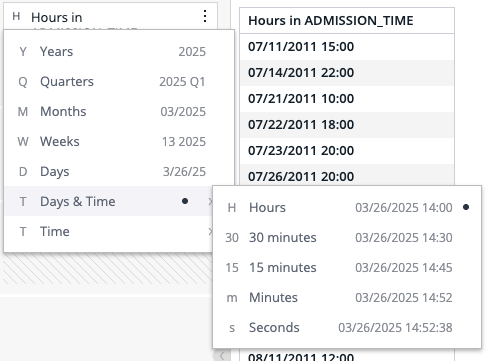
Days & Time (Continuous): A new Days & Time level keeps both the date and the time. Break down a date field by Hours, 30 minutes, 15 minutes, Minutes, or Seconds. For example, 03/26/2025 14:00 and 03/27/2025 14:00 remain two separate points, sorted chronologically.
-
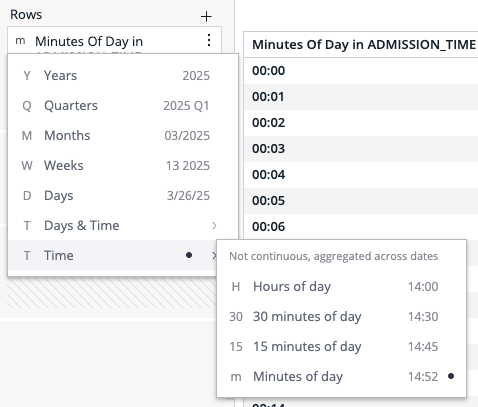
Time (Aggregated): Group values by Hours of day, 30 minutes of day, 15 minutes of day, or Minutes of day across all dates. For example, 14:10 on one day and 14:40 on the next day are grouped together under Hours of day.
-
All Chart Widgets: Line, column, bar, and other chart widgets now offer the same time levels as Pivot and Table widgets, on both ElastiCube and Live data sources. Previously, charts offered only Hours and 15 minutes.
-
Date and Time Formatting: On ElastiCube data sources, the Format Date window now includes a Days & Time tab, with the same format options and selectable examples as Live models.
-
Data Browser: As before, you can add a date field to a widget directly at a Days & Time level, instead of adding it and then changing its level. The Data Browser now includes the new values and displays the new menu.
-
Exports, Reports, and Pulse: Time levels are supported when downloading widgets and dashboards as images, PDF, CSV, or Excel, in the Report Manager, and in Pulse.
New Date Level Menu
For both ElastiCube and Live data sources, the date level menu now looks and works the same wherever you select a date level: the widget editor, the new widget preview, and the Data Browser.
-
Seven Levels: The menu lists Years, Quarters, Months, Weeks, Days, Days & Time, and Time, with sub-levels under Days & Time and Time.
-
Letters and Example Values: Each level shows a letter (Y, Q, M, W, D, T) and an example value, such as 2025 Q1 or 03/2025, so you can see the result before you select it. The example follows the custom format set for the field. If the field has no custom format, the example follows the default format, the locale, and the fiscal year setting of the data source.
-
Current Level Indicator: A mark in the menu shows the currently selected level.
-
Level Letters on Date Fields: Date fields in the widget editor show the same letter as the menu (for example, M for Months or 15 for 15 minutes), so you can see the level without opening the menu.
-
Consistent Titles: Field titles and export headers use the same wording as the menu. For example, Hours of day and Hours now produce different titles.
The following examples show the Days & Time and Time sub-levels in the new menu:
Key Considerations
-
Days & Time is not available on data sources that use a fiscal year. This limitation already applied to Live models and now also applies to ElastiCubes. Time and the calendar levels (Years through Days) continue to work with a fiscal year.
-
Existing widgets and dashboards continue to return the same results, because each level produces the same query as before.
-
Filters do not offer the new levels. To filter a time range across all dates, such as an 08:00 to 16:00 shift, use the existing aggregated Hour filter.
-
Time levels below Days are not supported for Min/Max aggregations of date fields.
KPI Chart
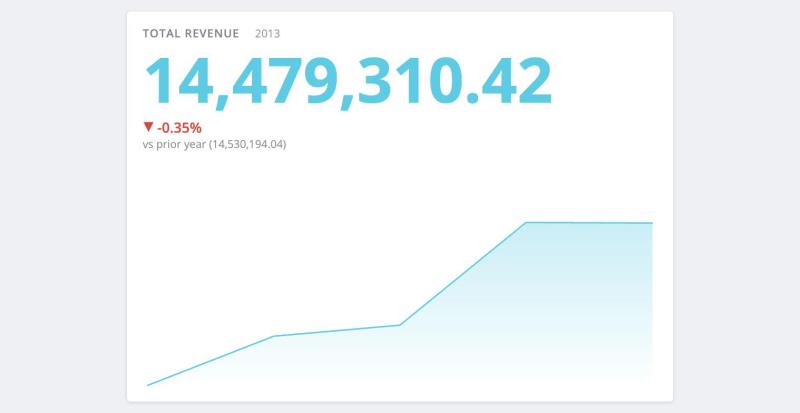
A new KPI Chart widget is now available. The KPI Chart combines a primary performance metric, period-over-period comparison values, and a historical sparkline trend in a single widget.
Previously, tracking a KPI alongside its historical trend required building and maintaining two separate widgets (an indicator widget and a line or column chart) with matching measures, filters, and date dimensions. The KPI Chart consolidates all of these capabilities into one configurable visualization, saving dashboard space and simplifying dashboard creation.
Pulse (Beta)
Pulse, first released as a Preview in 2026.3.2, is now in Beta. Describe what you want watched, in your own words, to the assistant, and Sisense turns it into a Pulse: a saved analysis that runs on a schedule, records what it finds each time, and notifies you when your condition is met. Classic Pulse alerts continue to work unchanged, and both appear together on the Pulse page.
What's New in Beta
-
Review Before You Confirm: The assistant shows the Pulse it built, including the data it queries, the condition it checks, and how often it runs. You can revise it in the conversation (for example, "check it daily") before confirming. If a request is outside what a Pulse can watch, the assistant says so and suggests the closest alternative.
-
Supported Patterns: Watch for a value crossing a threshold (optionally with a breakdown of what drove the change), a ranking changing, actuals against plan, a trend, a forecast, or an anomaly. A single Pulse can combine a small number of these patterns.
-
Clear Run Outcomes: Each run reports Met, Not met, Inconclusive, or No data. For trends and forecasts, Pulse compares the result's confidence range against your threshold. When the change can't be distinguished from normal variation, it reports Inconclusive rather than presenting an unreliable number as a finding.
-
Early Data Warnings: If your data cannot support the question you asked, the assistant tells you while you are setting up the Pulse, not after it has been running for weeks.
-
Run History: Every run is recorded, whether or not the condition was met. Open a Pulse from the Pulse page and select History to see each run, its outcome, and the values behind it.
-
Scheduling: Pulses on ElastiCube data run after each successful build. Pulses on Live models run on a schedule you set, with a minimum interval of 15 minutes. Incomplete periods are excluded automatically. You can also run a Pulse on demand at any time, without affecting what its scheduled runs compare against.
-
Cron Schedules and Pause: Set cron-style schedules for more specific timing, and pause a Pulse for a period without deleting it.
-
Notifications: When a Pulse meets its condition, the notification includes what was measured, the values behind it, and a plain-language explanation. Notifications use the same channels as classic Pulse alerts: the in-product notification center, email, mobile, Slack, Zapier, and webhooks.
-
Pulse Page: Pulses created through the assistant appear alongside classic Pulse alerts, marked with a distinct icon. Each tile shows the current value, the result of the most recent run, and the Pulse's query definition and schedule.
Availability
Beta. Requires Sisense Intelligence with a configured LLM. Designer or Admin permissions are required to create a Pulse, and a Pulse can only watch data you already have access to. Administrators control availability on the Sisense Intelligence admin page.
Known Limitations in Beta
-
A Pulse can only be created and revised through the studio assistant (the assistant accessed from its own tab); it is not currently available in the Analytics assistant. There is no in-product editor and no entry point from a dashboard or widget.
-
Slack, Zapier, and webhook destinations are configured on the Pulse after it is created, not while describing it to the assistant.
-
External systems cannot query a Pulse or receive its results programmatically. This is expected to be included in the GA release.
-
Patterns that compare against previous runs need history before they can reach a conclusion. The first run records a starting point, and anomaly detection needs several runs before its results are meaningful.
-
Changing what a Pulse queries resets its comparison history, so the next run records a new starting point.
-
A notification may occasionally be delivered more than once for the same occurrence.
Safe Data Model Renaming
Data Designers and Administrators can now edit data model display names directly from the Data page and Model page menus, without breaking existing dashboards, JAQL queries, custom plugins, or API integrations. Because the user-facing Display Name is now decoupled from the underlying, immutable Identity Name (title/OID), your assets can keep pace with evolving business terminology without cloning models or manually updating dashboards.
Key Highlights
-
Decoupled Architecture: Introduces an editable, user-facing Display Name, while the system Identity Name (title/OID) remains a stable technical contract.
-
Unified UI Experience: User-facing labels across the Data page, Analytics pickers, dashboard chrome, Galaxy lists, Compose SDK UI, and the Sisense Intelligence assistant display, and are searched by, the Display Name.
-
Zero Breakage Guarantee: APIs, JAQL routing, permission checks, backend sync locks, and CSDK query bindings continue to use only the immutable Identity Name or OID.
-
Immediate and Deferred Visibility:
-
Data Page and Model Page: Reflect the new display name immediately upon saving (via the root perspective working copy).
-
Analytics, CSDK, and the assistant: Updated after the next Build or Publish Semantics execution.
-
Sisense Vector DB & Expanded BYO VDB
Sisense now includes an in-box, locally hosted Vector Database (VDB). It provides complete data locality for AI similarity and search services, without requiring external cloud connections (such as MongoDB Atlas) or separate customer-managed vector stores.
This gives customers full flexibility and control over where vector data and embeddings reside, in line with enterprise security, data sovereignty, and strict privacy policies.
What's New & Key Highlights
-
Default In-Box Vector Store: When no explicit external VDB connection is supplied, Sisense similarity and AI indexing services now use the embedded local MongoDB instance (upgraded to support vectorSearch) by default.
-
Elimination of External Cloud Dependencies: Self-hosted and regulated single-tenant deployments (e.g., enterprise managed environments) can run AI search, member indexing, and NLQ features entirely within their local cluster, without exposing data to external cloud services.
-
Admin Migration Controls and UI Guidance: The Admin settings now include a simplified migration toggle and guidance for moving existing Bring Your Own (BYO) VDB setups to the standardized in-box Sisense VDB.
-
Deprecation Notice for Custom BYO VDBs: Custom BYO VDB provisioning APIs and UI controls are now deprecated. Customers currently using custom external VDBs are encouraged to migrate to the in-box local VDB for simpler deployment, better stability, and lower operational maintenance.
Important Migration Guidance
-
New Customers: All new installations automatically use the in-box local Vector DB.
-
Existing BYO VDB Customers: We recommend migrating to the local Sisense VDB using the automated administrative migration sequence. If your organization needs to remain on a custom external VDB, contact Sisense Customer Success or Support about entitlement options.
What’s Improved
Assistant
-
Chart and Table Toggle in the Canvas Header: The toggle between a chart result and its table view is now in the canvas header, with updated icons and tooltips, and is scoped to widget view.
-
Query Transparency and Definition Chips: Building on the chip-based query definition introduced in 2026.3.1, this release makes chip labels readable and consistent across the assistant canvas and the Query Build card.
-
Measure Labels: Measure chips follow a consistent naming rule, using the field's friendly name where one is defined, rather than the system-generated name.
-
Filter Values: Filter chips show the filter's values alongside the field name (for example, Country: United States), following a consistent rule across filter types.
-
Date Filter Formatting: Date filter chips render at the filter's own level of granularity (for example, Date: 2013), instead of as a raw ISO timestamp.
-
Dashboard Filters as a Single Indicator: Dashboard filters applied to a result appear on the canvas as one expandable indicator, rather than as individual chips. Widget filters are shown before dashboard filters, matching the order in which they are evaluated.
-
-
AI-Ready Semantic Layer and Calculated Dimensions:
-
Calculated Dimensions in Natural Language Queries: Shared formulas that represent row-level grouping keys are now classified as calculated dimensions rather than measures, so the assistant can group by them correctly. Previously, a calculated dimension reached the model shaped like a measure, which produced a broken query with no error shown.
-
Shared Formulas in Natural Language Queries: Previously, if any single shared formula failed to translate, none of the model's shared formulas reached the assistant. Formulas are now translated individually, and the parser accepts formulas containing escaped quotes, newlines, and data model references with parentheses.
-
-
Smoother Conversation Flow: The assistant no longer interrupts you mid-conversation. You can keep typing while an answer is being written, and the view stays where you left it instead of jumping to follow new output. Your question stays anchored, with the answer appearing below it, and expanding a query card no longer returns you to the bottom of the thread. The assistant panel now stays open until you close it, so clicking elsewhere on the dashboard no longer ends your session.
-
Dashboard Access via the assistant: The assistant can now work with any dashboard you have access to. Previously, it could only retrieve dashboards created by the assistant. Now, when you ask the assistant about a dashboard, it can find and act on any dashboard you're permitted to view in Sisense. Access is unchanged — the assistant only surfaces dashboards you could already see in the product.
-
Increased AI Context Character Limits: The character limit for the AI Context field has been increased (replacing the previous 500-character limit):
-
Model and Dashboard level: Up to 2,000 characters
-
Table, Column, Widget, and Shared Formula level: Up to 1,000 characters
This provides data designers with expanded capacity to supply richer business context to the assistant.
-
Assistant - Redesigned Chat Experience
The assistant has an updated design that makes conversations easier to read and follow. Answers are easier to scan, new chats start faster, and past chats are easier to find and manage, so you get from question to answer with fewer distractions.
Key Highlights
-
Focused Reading Column: Conversations appear in a fixed-width column instead of stretching across the full width of the screen, which makes longer answers easier to read.
-
Faster Start to a New Chat: Your first message appears as soon as you send it, and the answer starts without a loading screen in between.
-
Redesigned Chat History Panel: In the full-screen assistant, the history panel stays pinned on the left until you close it and lists chats by most recent activity. Hover over a chat to open a menu where you can rename or delete it.
-
Updated Disclaimer: The reminder "AI can make mistakes. Double-check results." appears below the message box after you send your first message, instead of on the starting screen.
Calculated Dimensions - Row-Level Date Functions
-
Following the launch of Calculated Dimensions (CD) for self-service data transformations, key date functions have now been added to speed up common expression use cases. This release expands the Calculated Dimension Function Library with row-level date manipulation capabilities. Row-level date functions are evaluated at query runtime, without requiring aggregations inside the CD expression.
Current Date Function
-
Real-Time Evaluation: CurrentDate() evaluates the current date dynamically at query runtime, for time-elapsed calculations (e.g.,
DDiff(CurrentDate(), [Order_Date])). CurrentDate() takes no parameters.
Examples
-
HDiff(CurrentDate(),[Admission_Time]) -
CASE WHEN [Admission_Time] < CurrentDate() THEN 1 ELSE 0 END -
CASE WHEN [Admission_Time] >= CurrentDate() THEN [Admission_Time] ELSE CurrentDate() END -
CASE WHEN CurrentDate() >= '2025-12-12' THEN 1 ELSE 0 ENDNote:
A date written as text also works.
-
If([Admission_Time] >= CurrentDate(), 1, 0) -
Concat([Name],CurrentDate())
A calculated dimension must include at least one original model column, so CurrentDate() alone, as the entire formula, does not work. This also applies when CurrentDate() is part of a larger formula. For example, the following formula fails:
CONCAT(LEFT(CurrentDate(),4),RIGHT([Admission_Time],7))Date Component-Extraction Functions
Calculated Dimensions now include date component-extraction functions. Each function extracts one component (such as the year, month, or hour) from a date, datetime, or timestamp column and returns it as a number. The functions work the same way across Live and ElastiCube data sources, in every widget that uses a calculated dimension, and in Compose SDK.
-
Supported Functions: GetYear(), GetQuarter(), GetMonth(), GetDay(), GetHour(), GetMinute(), and GetSecond().
-
Where to Find Them: In the Create New Formula dialog for a calculated dimension, open the Functions tab, select Date & Time, and choose a Get function (for example, Get Day). Each function has a catalog entry with a description and examples.
-
Flexible Usage: The numeric result can be used anywhere a number is accepted, including inside expressions (such as text functions, CASE WHEN, and IF), in comparisons (such as
>=or<), and in arithmetic calculations. -
Clear Validation: A clear error message appears when a function is called with the wrong number of arguments.
Examples
-
GetMinute([Date]) -
CASE WHEN GetHour([Date]) >= 5 THEN 'After 5AM' ELSE 'Before 5AM' END
Limitations
-
The functions are supported only in calculated dimensions. Using one in a measure returns an error such as:
GetMinute is not supported in measures. Use it only in calculated dimensions. -
GetWeek() is not supported.
-
The functions are evaluated on row-level data, so the date level set on the field (for example, Months) and fiscal year settings are ignored.
-
Seconds are always returned as whole numbers. When a database returns fractions of a second, the value is rounded down.
-
Calculated Dimensions - ToString Function
-
Calculated Dimensions now include the ToString() function, which converts a value of any type to its text representation. Previously, ToString() was available only in custom columns and custom tables, where it is evaluated once when the ElastiCube is built. In a calculated dimension, ToString() is evaluated dynamically at query runtime, and works the same way across Live and ElastiCube data sources.
-
Syntax:
ToString(value)takes a single argument of any data type and returns a text value. -
Where to Find It: In the Create New Formula dialog for a calculated dimension, open the Functions tab and select ToString. The function has a catalog entry with a description and an example.
-
Flexible Usage: The text result can be used anywhere text is accepted, including inside other text functions (such as Concat), CASE WHEN, and IF expressions.
-
Consistent Behavior: ToString() in a calculated dimension behaves the same as ToString() in custom columns and custom tables.
-
Clear Validation: A clear error message appears when the function is called with the wrong number of arguments.
Examples
-
ToString([Order_ID]) -
Concat('Order #', ToString([Order_ID]))
-
Centralized AI Feature Credit Management
-
Tenant Administrators now have granular control over who can use specific AI features, how monthly credits are distributed among teams or individual users, and how consumption limits are enforced. You can budget monthly credits by tenant, user group, or user; provide top-up allocations; and set consumption alerts. A new Usage Analytics dashboard is also available.
-
Credit Budgets by Entity: Tenant admins can now set a monthly credit budget per tenant or user group. A user who belongs to multiple groups inherits the highest single group allocation, rather than a cumulative total. A Split equally option divides a group's credit pool evenly across its members.
-
Top-Up Allocations: Admins can allocate additional credits on top of the current monthly limit at any time, without resetting the cycle's consumption.
-
Usage Analytics Dashboard: A new Usage Analytics view under Sisense Intelligence shows credit consumption, query success rate, estimated LLM cost, and active AI users. It includes breakdowns by tenant and user group, the top credit consumers, and a daily consumption-versus-budget trend.
-
Credits and Budgets API Coverage: Credit allocation, per-user credit limits, and a user's effective (resolved) credit balance are all available via REST API, alongside the existing feature-management endpoints.
-
Centralized AI Feature Management
-
The initial release of Centralized AI Feature Management introduced the consolidated Feature Management page under Sisense Intelligence, and cascading access controls (General → Tenant → User Group). This update delivers significant improvements, architectural decoupling, and administrative consolidation.
Key Improvements & Enhancements
-
Search and Indexing Setup: Search and indexing require the Cloud Linked Features setting to be enabled. This applies to managed cloud and self-hosted deployments alike.
-
Search Indexing and Controller Decoupling:
-
Search indexing has been realigned with the new Feature Management design.
-
Controller logic and feature gating for Semantic Enrichment have been separated.
-
-
Feature Access Tracking and Telemetry: End-to-end testing coverage and telemetry tracking have been added for AI feature usage and access governance.
-
Data Modeling - Join Type Configuration Restricted on Legacy Relation Models
-
To ensure query correctness and alignment with Outer Join prerequisites (which require Direct Relations), the Join Type selector in the Data Model UI is now disabled (read-only) for data models and perspectives that use legacy relation types.
-
Visual Clarity: The join type remains visible so you can see the active join configuration, with a tooltip explaining why it cannot be changed directly in legacy models.
-
Perspectives and Inherited Joins: This restriction also applies across model perspectives, to prevent invalid changes to inherited joins.
-
Backward Compatibility: Join definitions in existing models are preserved. To configure or modify join types, duplicate the model using Duplicate with Direct Relations; all join definitions are kept and become editable.
-
Filter Widget - Date Filters (Beta)
-
A new Calendar filter type is now available for datetime dimensions on filter widgets. Dashboard builders and viewers can select one or more specific dates using a calendar interface, providing a streamlined alternative to standard list filters.
Key Capabilities
-
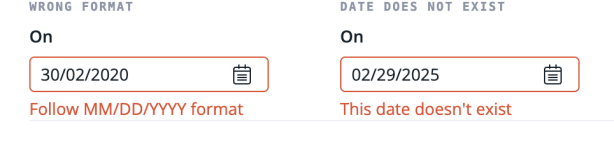
Flexible Selection Modes: Select a single date directly from the calendar panel, or enter one manually in MM/DD/YYYY format. Real-time validation flags an incorrect format or an invalid date (e.g., February 29 in a non-leap year).
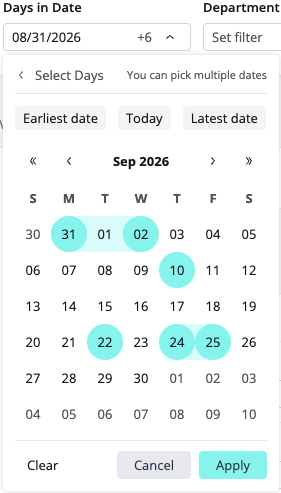
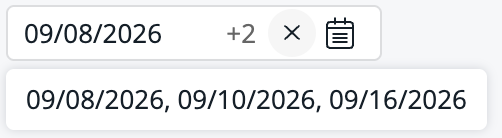
In multi-select mode, choose multiple discrete dates. An overflow counter (+N) with a hover tooltip lists every selected date. Consecutive selections render as a continuous range in the UI, but are still sent as a list of query members, so query performance is the same as with a standard list filter.
-
Quick Date Navigation: Jump instantly to the Earliest Date, Today, or Latest Date within the available data range, or pick a date outside the currently populated range.
-
Theme and Localization Support: Supports system Look & Feel themes and color mapping, and is localized for all supported languages.
-
MCP Server - Build Dashboards from AI Agents
-
MCP-compatible agents (Claude, Cursor, and others) can now assemble Sisense dashboards, not only run queries and build single charts. This extends the MCP Server GA from Sisense version 2026.3.2, which covered exploring data and building charts under the signed-in user's permissions.
What's New
-
New
buildDashboardTool — After charts exist (created withbuildChart), the agent can create a dashboard; add, remove, or replace charts; update the title and row layout; add filters; or open an existing Fusion dashboard. -
Interactive Dashboard View — The dashboard renders in the MCP client with Compose SDK, using the same governed semantic layer as charts.
-
Min/Max Aggregation for Date Fields
-
Min/Max aggregation for date fields, introduced in Sisense version 2026.3.2, now supports Compose SDK and fiscal year settings.
-
Compose SDK Support: Min/Max date measures now display, filter, and export as dates in Compose SDK components, including tables, pivot tables, and indicator charts.
-
Fiscal Year Support: Min/Max aggregation for date fields now works with data models that use a custom fiscal year.
-
Publishing Semantics - Increased Coverage
-
Publishing Semantics now supports additional data model changes, so you can apply the following without running a build:
-
Perspectives: Quickly create and edit perspectives, including adding and removing tables. A build is no longer required to make them operational.
-
Hiding Fields: Hide fields in your data model.
-
Smart Matching: Apply Smart Matching changes.
-
Fiscal Year: Configure the fiscal year for your data model.
-
Semantic Enrichment - Error Logs
-
Semantic Enrichment now provides a report that explains why specific tables and columns were not enriched. In the Data assistant menu, under Advanced options, select the new Download Semantic Enrichment Report item to download a JSON report of the latest enrichment run for the open data model or perspective.
The report lists each table and column that was not enriched, along with the reason (for example, statistics not calculated or an unsupported column type). You can then fix the model and re-run enrichment, add descriptions manually, or share the report with Sisense Support.
Sisense Intelligence - Synchronization and Feature Gating
-
AI integration and semantic search services have been updated to ensure immediate synchronization and consistent feature gating across AI capabilities when permissions change.
Sisense Intelligence Search - GA
-
Sisense Intelligence Search is now generally available (GA).
Building on the previous Beta capabilities, this release delivers a production-grade search experience for quickly finding, previewing, and reusing existing dashboard widgets across the platform. By surfacing rich metadata, refined result filtering, and direct dashboard actions, Sisense Intelligence Search eliminates duplicate effort, reduces manual widget rebuilds, and accelerates data discovery across your organization, all while respecting strict share-level permissions.
This release also hardens the AI platform behind search to production quality, with tuned match relevance, resilient large-scale indexing, and deeper assistant integration, so the engine underneath is as dependable as the experience built on top of it.
What's New in GA
-
Refined Search Result Experience
-
Responsive Layouts: Browse search results using flexible spotlight-panel and grid views, optimized for different screen sizes and result volumes.
-
Per-Chart Visual Placeholders: Quickly identify visual types (e.g., pivot tables, bar charts, line graphs) via distinct chart placeholders before opening a result.
-
Persona-Based Filtering and Pagination: Refine results based on user roles, and navigate large result sets with smooth pagination.
-
-
Rich Metadata and Trust Displays
-
Contextual Metadata: Each search result displays critical context, including:
-
Widget name
-
Parent dashboard name
-
Underlying data source/data model
-
Last modified date
-
-
Clear Operational States: Polished UI indicators guide you through non-standard states, such as initial workspace indexing, zero-match queries, or system connection errors, providing actionable next steps rather than silent failures.
-
-
Direct Actions from Search Results
You can perform complete dashboard actions directly from search results, based on your granted permissions:
-
Interactive Preview: Preview full widget visuals and data without leaving the search surface.
-
Add to Dashboard: Insert any discovered widget into a new or existing dashboard with one click.
-
Jump to Source: Navigate directly to the source dashboard, with the widget highlighted in its native context.
-
-
Match Quality and Indexing
-
Tuned Relevance and Retrieval: Relevance thresholds, field weighting, and acronym/terminology matching are tuned against a benchmark dataset and evaluation harness, so the best result surfaces first and off-topic matches are held back.
-
Resilient, Production-Scale Indexing: Indexing is now resilient and resumable at scale. A full re-index runs automatically the first time search is enabled, and a scheduled refresh keeps the index current afterward.
-
Owner-Only Draft Search: Draft dashboards are indexed and searchable only by their owner, keeping unpublished work private.
-
Security & Governance
-
Share-Level Permission Scoping: Search results are strictly scoped to your existing dashboard share permissions. You can only search, preview, and reuse widgets from dashboards you are explicitly authorized to view.
-
Zero Credit Consumption: Intelligence Search operates within standard system governance and does not consume AI credits.
Technical & Integration Details
-
API Endpoints: Consumes the AI Platform's governed semantic search contract (
/api/v2/ai/semantic-search/*). -
Indexing: Dashboards and widgets are automatically indexed when they are created or updated. The search interface displays an indexing status prompt if new content is still being processed.
-
What’s Fixed
Access Control
-
Previously, users could select a narrower permission level (for example, Can View) for a subfolder even when they had broader permissions (for example, Can Design) inherited from a parent folder. The sharing dialog now correctly enforces permission inheritance by disabling options that are more restrictive than those granted by the parent folder. Additionally, the Make Co-Owner option is now correctly disabled for users with the Viewer Plus role.
-
Previously, users could select a Can View permission for a dashboard or subfolder even when they had higher Can Design permissions inherited from a parent folder. The sharing dialog now correctly enforces permission levels by disabling options that are narrower than those granted by the parent folder, ensuring consistent access control across the folder hierarchy.
Add-ons
-
Export Modifications - Previously, exporting large CSV files (exceeding ~512 MB) using the Export Modifications add-on would fail with an error (
ERR_STRING_TOO_LONG) or cause the system to crash due to memory limits. The export logic now handles large data volumes more efficiently, ensuring successful exports and improved system stability during heavy data operations. -
Export Modifications - Previously, decimal-place formatting was lost when exporting widgets to CSV while the Export Modifications add-on was enabled. Numeric decimal masks defined in the widget's metadata are now correctly preserved and applied during both buffered and streamed CSV exports, even when dashboard filters (such as "Top N") are active.
Analytical Engine
-
Previously, ec-qry pods could enter an indefinite crash loop during startup, preventing dashboards from loading and resulting in "Error querying your data model" messages. This occurred because the routine responsible for cleaning up stale local storage failed to remove non-empty directories, causing a fatal error in the underlying database engine (MonetDB). Stale directories are now correctly handled, allowing pods to initialize successfully and maintain query availability, particularly in environments with multiple query replicas or Active/Standby configurations.
APIs
-
Previously, the
POST /llm/v1/responsesendpoint failed with a 503 error (LlmProviderUnavailable) whenever a streaming response was requested. This occurred because the system incorrectly attempted to JSON-encode the streaming data instead of delivering it as a continuous stream. The endpoint now correctly supports streaming, so users and integrations relying on the v1 API path receive real-time responses as expected.
Assistant
-
Previously, the assistant incorrectly prompted users to save their dashboard after adding widgets, even when the changes had already been saved automatically. The assistant now correctly identifies the save status and reminds users to save only in environments that don't support automatic saving, or when a timeout occurs.
-
Previously, the CSV download option on an assistant result did not produce a file. Downloading results as CSV now works as expected.
-
Previously, LLM error messages (such as "The LLM model schema is invalid") incorrectly displayed "Details: undefined", "Details: null", or a raw
{details}token when the system provided no additional error details. Error messages now correctly omit the details clause when no further information is available. -
Previously, the Analytics assistant remained available to dashboard owners even when access was disabled in the data model's security settings. The assistant dock now correctly shows a "Disabled" state with an explanatory tooltip when access is restricted via the data model, and is hidden entirely for users who lack the required feature access.
-
Previously, the assistant tab failed to load and displayed a "Something went wrong" (404) error when Sisense was deployed behind a reverse proxy with a non-root subpath (for example,
/subpath/). This occurred because the assistant's API requests were incorrectly sent to the server root instead of honoring the configured proxy subpath. The assistant now includes the proxy subpath in all of its requests, ensuring full functionality in proxied environments. -
Previously, long AI-generated chart and query titles could push widget header controls, such as Download and Add Tile, out of view. Generated titles are now capped at 60 characters so the header controls remain accessible.
-
Previously, clicking the "+" button in the assistant to start a new conversation, or using the "back" button in the chat history, sometimes caused the application to crash with a "Something went wrong" error, both on dashboards and in the widget editor. The buttons now work as expected.
Build
-
Previously, publishing complex Live models with a large number of columns could cause a significant CPU spike and thread saturation in the Analytical Engine, because the system triggered thousands of individual, synchronous translation requests for model statistics. These requests are now batched and grouped by table, reducing communication overhead and ensuring system stability while the model is published.
Compose SDK
-
Previously, using a non-date column (such as a text-based category) in the KPI chart's "Category" slot caused tooltips to display incorrect Unix epoch dates (e.g., "Jan 1, 1970") and comparison captions to show irrelevant time-based labels such as "vs prior year." The component now correctly identifies the data type of the category column and displays the appropriate labels and comparisons.
Connectors
-
MSSQL connector - connecting to SQL Server 2014 and older
Starting with Sisense version 2026.1.2, Sisense runs on Java 17.0.18, which disables the legacy TLS_RSA cipher suites. SQL Server 2014 and older fail to connect with an SSL handshake error, even when "Encrypt Connection" is off.
To continue connecting, enable legacy TLS and restart the affected pods as follows:
kubectl patch configmap global-configuration -n sisense --type merge -p '{"data":{"SISENSE_ENABLE_LEGACY_TLS":"true"}}'
kubectl rollout restart deployment build build-ec-mgmt query -n sisense
Deprecation notice: This setting is available during a temporary grace period. It will be deprecated in January 2028 as part of our continued effort to raise Sisense's security. Before then, upgrade to SQL Server 2017 or later.
Dashboard Co-Authoring
-
Previously, when Dashboard Co-Authoring was enabled, scheduled email and PDF reports incorrectly included the "Private mode — changes here will remain visible only to you" warning message and a dashed frame. These visual indicators, intended only for the interactive dashboard editor, are now hidden in exported reports.
-
Previously, exporting a co-authored dashboard in shared mode via the API (
/api/v1/dashboards/{id}/export/dash?sharedMode=true) changed the dashboard's Object ID (OID) in the exported file. As a result, bulk imports using theoverwriteSharedaction created a duplicate dashboard instead of overwriting the existing one. The export now preserves the original OID, so dashboards can be updated via the API as expected. -
Previously, when using Dashboard Co-Authoring in Shared Mode, filters from a source dashboard remained permanently applied to a target dashboard after a Jump to Dashboard (JTD) action. This occurred even if the "Reset dashboard filters after JTD" setting was enabled, because the system failed to clear the temporary jump filters on the shared version of the dashboard. The target dashboard now correctly restores its original filters when it is next opened.
-
Previously, the dashboard share modal displayed an incorrect permission level for users who had higher-level permissions inherited from a parent folder. For example, if a dashboard was shared with a user as Can View and its parent folder was shared with the same user as Co-Owner, the dashboard share modal displayed the user as Can View. The dashboard share modal now correctly reflects the user's inherited Co-Owner status.
-
Previously, deleted widgets remained in the dashboard layout for co-owners after the dashboard owner republished the dashboard. This occurred because co-owners' per-user dashboard copies were reconciled only when they manually opened the dashboard in the Sisense UI, causing stale data (and potential 404 errors) when retrieving the dashboard model via the REST API or Compose SDK. Deleted widget references are now removed from all co-owner layouts during republishing.
Dashboards
-
Previously, changing the data source of a dashboard that was imported from a Windows environment to a Linux environment failed. This occurred because the system matched the server address case-sensitively, while the web client sent the address in lowercase. The address comparison is now case-insensitive, so data sources can be changed regardless of the address's original casing in the exported dashboard file.
-
Previously, users with "Can design" permissions were unable to import dashboards into folders shared with them. The import process incorrectly required ownership of the target folder, resulting in a "Failed Importing Dashboard" error even when the user had the necessary design rights. Import behavior now correctly aligns with dashboard creation permissions, allowing authorized editors to import dashboards into shared folders.
-
Previously, changing a dashboard's owner and republishing it caused widget records to be duplicated in the database. This occurred when widgets were flagged with a co-authoring marker (
createdInPrivateMode), even if co-authoring was disabled. These widgets are now correctly handled during ownership transfers, preventing the accumulation of "ghost widgets" and potential UI performance issues.
Data
-
Previously, a third-party onboarding panel ("What would you like to dive into?") was incorrectly displayed on the Data tab, covering the ElastiCube list and preventing users from managing their data models. This was caused by an external configuration in the user-assistance integration, and has now been resolved.
Data Models
-
Previously, the OIDs option appeared twice in the column menu for columns in Live models, because the menu's action set was merged without removing the duplicate OID entry. The OIDs option now appears only once in the column menu.
ElastiCubes
-
Previously, on self-hosted Linux deployments, importing an
.sdatamodel under a new name (different from its original exported title) caused the import to fail and the ElastiCube to disappear from the Data page. This occurred because the underlying database within the exported archive was not renamed to match the new model title, leading to connection failures. The import process now properly renames the internal database, so renamed models import successfully.
Email Reports
-
Previously, sending large email reports (e.g., 8–11 MB reports with embedded images) failed with a timeout error. This occurred because the system's internal inactivity timer for email transfers was set too low, causing the connection to abort prematurely under slow network conditions. The timeout has been increased so that large reports have enough time to complete their transfer.
EmbedSDK
-
Previously, when navigating between dashboards within a persistent iframe using the Embed SDK's
dashboard.open()method, each navigation added an entry to the browser's session history. As a result, the browser's Back button stepped back through previously opened dashboards instead of navigating the host application. A newreplaceoption has been added todashboard.open(). When set totrue, navigation uses "replace" semantics instead of "push," so the browser's session history no longer grows with each navigation.
Explanations
-
Previously, in the Explanations feature, dashboard-level filters that were explicitly disabled for a specific widget were still applied to the generated insights. This could cause the Explanations chart to display incorrect results, or to fail to render with a console error when the resulting data set was empty. The Explanations feature now correctly respects widget-level filter configurations, keeping the widget's displayed data consistent with the generated explanations.
Filters
-
Previously, clicking a column or bar in a chart incorrectly removed the value from the date filter instead of selecting it. Additionally, when only one value remained, the filter stopped responding to further clicks and could not return to the Include All state. Clicking a chart element now correctly narrows the selection to that value and preserves the filter's multi-selection mode, so users can clear the selection as expected.
-
Previously, the Select All and Clear All buttons in the Filter UI, along with their hover descriptions, remained in English regardless of the user's profile language settings. These elements now correctly reflect the selected locale for all supported languages.
Formulas
-
Previously, shared formulas were not correctly included in exported dashboards, causing widgets to fail with an "Invalid Formula" error when imported into environments where the original data model was unavailable. The shared formula content is now inlined within the dashboard artifact, so widgets remain functional and portable across servers, even if the source shared formula is missing on the target system.
Grafana
-
Previously, in multi-node Linux deployments, opening the Grafana monitoring page could cause system-wide downtime. When the Grafana UI attempted to establish a WebSocket connection, the API Gateway dropped the request. This triggered Nginx's passive health checks to incorrectly mark all API Gateway replicas as unhealthy, resulting in 502 errors for all users. WebSocket upgrades for Grafana are now properly authenticated and proxied, preventing Nginx from disabling healthy upstreams and maintaining system stability.
Infra
-
Previously, the
rke2-corednspod frequently reached its CPU limit, causing automated cloud alerts and potential cluster instability. The CPU limits for the CoreDNS service have been removed to prevent throttling and ensure consistent cluster health across Linux deployments. -
Previously, following an upgrade to version 2026.3.1, the knowledgegraph pod could enter a CrashLoopBackOff state. This was caused by a bug in the Helm chart that incorrectly deleted the Dgraph data directory during the upgrade if a specific version marker was missing. Existing data is now preserved or safely migrated during upgrades, and the service can automatically recover from schema inconsistencies instead of entering a crash loop.
Installation
-
Previously, the
changePositionOfTagAndDescriptionmigration script could cause the system upgrade to fail with an out-of-memory (OOM) error in environments with a very large number of tagged dataset tables. The migration now processes data in paginated batches with checkpoints, so it is crash-resumable and can process large datasets without exceeding memory limits.
Multitenancy
-
Previously, Tenant Administrators were unable to view their own tenant's credit limit on the Credits & Allocations page, and the credit pool values were displayed as "—". This occurred because the underlying API route was incorrectly restricted to System Administrators only. Tenant Administrators can now view their own credit limits and allocation details.
-
Previously, the Groups scope on the AI Credits management page incorrectly displayed the total environment credit balance as the available pool for all tenants, so tenant administrators saw the entire deployment's credits as "Free to allocate" rather than their tenant's own limit. The individual tenant's credit limit is now correctly displayed and enforced as the pool for group-level allocations, so credits allocated to a tenant are accurately reflected when managing its internal user groups.
-
Previously, user groups with zero allocated credits were incorrectly able to access AI features on their first request. The system now correctly enforces credit limits, so groups without an allocation cannot use AI functionality.
-
Previously, user activation links for new tenant users were generated with a duplicated tenant name in the URL, leading to an "API not found" error. The tenant name is now correctly processed during SSO redirection and user activation flows, so users can access the activation page.
Narrative
-
Previously, when a user had no personal language preference set, dashboard and widget narratives (including the assistant's Insights) were generated in English regardless of the system language. In addition, after the system language changed, cached narratives continued to be served in the previous language. Narratives now use the system language when no user language is set, and a language change triggers a cache miss so that narratives are regenerated in the new language.
Natural Language Query (NLQ)
-
Previously, natural language queries (NLQ) involving a forecast on coarse date granularities (such as quarters) failed with a backend execution error, because the system incorrectly passed an internal
spanparameter to the forecast function during preview dataset generation. Forecast parameters are now correctly resolved before query execution, so users see accurate chart previews for forecasted data across all time granularities. -
Previously, the assistant could generate broken formulas or return incorrect calculation results for date-based aggregations and differences, because mandatory date levels (such as Days, Months, or Years) were not consistently enforced and validated locally before processing. Additionally, the formula editor's guidance for hour-based calculations was incorrect. Date levels are now correctly enforced and validated, and the hour-based arithmetic guidance has been corrected.
-
Previously, natural language queries (NLQ) could silently drop filters and return incorrect, unfiltered results when the column-identification step correctly named a column but associated it with the wrong table in the data model. The system now searches for exact column-name matches across all tables in the schema, so filters are applied correctly even when the initial table association is ambiguous.
Notebooks
-
Previously, the PostgreSQL connection form in Notebooks did not include the "Schema" or "Additional Parameters" fields, and existing connections from the Data tab had their schema settings stripped or overwritten by blank defaults. This caused connection timeouts for users with a large number of schemas. The Notebooks PostgreSQL connection form now includes these fields and correctly preserves saved schema values, consistent with the Data tab.
Perspectives
-
Previously, dashboard owners were unable to share dashboards with groups when the dashboard's data source used Perspectives. Attempting to share such a dashboard, or to change a group's permission to "Co-Owner", failed silently in the UI due to a server-side error. Group permissions are now correctly resolved for dashboards using Perspectives, so sharing and ownership management work as expected.
Pivot Tables
-
Previously, in Pivot tables, enabling data bars for a column caused subtotal rows to display the group's maximum value instead of the configured sum. The pivot engine now correctly preserves manual subtotal aggregation settings when data bars are applied.
-
Previously, Pivot 2.0 widgets could remain in an infinite loading state, or show an error message only after 5 minutes, when a query was canceled by the data source (for example, Snowflake) due to a timeout. This occurred because canceled or abandoned queries were not correctly acknowledged in the system's internal queue, creating a backlog that prevented new queries from being processed. Canceled queries are now properly cleared, so the UI surfaces errors immediately and subsequent requests perform consistently.
Pulse
-
Previously, the Pulse assistant misreported the number of Pulse workflows and could not distinguish between workflows owned by the user and those shared with them. The assistant now correctly identifies workflow ownership and provides accurate counts for enabled and disabled workflows. Users can also mute or unmute notifications for shared workflows they do not own.
-
Previously, the confirmation message the assistant showed before creating a Pulse workflow could be mistaken for a completion summary, leading users to believe the Pulse was already active. The assistant now explicitly states that the Pulse has not been created yet, and provides clear suggestion chips to confirm and finalize the setup in a single step.
Report Manager
-
Previously, Report Manager sent report emails even when the global Send Emails setting in Admin > Server & Hardware > Email Settings was disabled. Report Manager now honors this setting. When Send Emails is disabled, reports without an archive destination are skipped entirely, while reports with an archive destination still run and archive, but no longer send emails. Skipped runs are marked with a warning in the report's Last Run status.
-
Previously, reports in the Report Manager could enter a continuous loop of failing and retrying when an authentication token became invalid or expired. A secondary error in the masking logic caused the request to hang indefinitely instead of returning a standard "not authorized" response, leading to a timeout and a subsequent retry cycle. Authentication failures are now handled correctly, so the system returns a proper error response and the report execution loop no longer occurs.
-
Previously, heavy Excel exports via Report Manager or the Export Modifications add-on could cause the external-plugins service to become unresponsive and enter a crash loop. This occurred because large export tasks (e.g., reports with a high cell count) blocked the service's main processing thread, leading to missed heartbeats and service restarts. The export logic has been moved to a dedicated background thread, so the service remains stable and responsive even during intensive export operations.
-
Previously, in Report Manager, reports from non-system tenants were archived to an incorrect directory on SFTP servers. The system incorrectly applied a local storage path prefix to the remote SFTP destination, causing files to be uploaded to a newly created directory structure (e.g.,
/opt/sisense/storage/tenants/{id}) instead of the configured root or target folder. Reports now correctly archive to the SFTP path defined in the tenant configuration. -
Previously, reports in Report Manager intermittently failed during the initialization phase with a
TypeError: Cannot read properties of undefined (reading 'nonSisenseUser')error. This occurred when multiple reports were triggered concurrently, causing the system to mishandle user token caching. Concurrent report executions no longer interfere with the shared token cache, providing stable report generation even under high load. -
Previously, duplicate email reports were sent when a dashboard export exceeded the internal request timeout. This occurred because the system incorrectly retried the report generation and delivery process multiple times if the initial attempt took longer than three hours. These requests are no longer retried automatically, preventing redundant emails from being sent to subscribers.
-
Previously, Viewers lost access to the Report Manager tab after upgrading to version 2026.1.2, because custom role permissions were incorrectly overwritten by default settings during the upgrade. Existing customer configurations are now preserved and correctly merged with system defaults during upgrades.
-
Previously, renaming a co-owned dashboard in a non-system tenant did not update the dashboard name in the Report Manager UI. The dashboard name now correctly synchronizes across all instances, ensuring consistency between dashboard administration and reporting modules.
Search
-
Previously, the AI Search (Beta) tab failed to load and displayed an
errors.responseErrormessage when Sisense was deployed behind a reverse proxy with a subpath (for example,/test/). This occurred because critical API requests for system settings and global configurations were incorrectly sent to the server root, dropping the required subpath prefix. All AI-related frontend modules now respect the configured Proxy URL, so the Search tab functions as expected in subpath environments.
Single Sign On (SSO)
-
Previously, SSO authentication and user activation failed with an "API not found" error. This occurred because the tenant name was incorrectly duplicated in the URL (e.g.,
{instanceUrl}/{tenant}/{tenant}/) when accessing the system via the tenant-specific URL or an activation link. The tenant name is now correctly identified and processed, preventing duplication and allowing successful redirection and login.
Sisense for Mobile
-
Previously, users were unable to log in to the native Sisense Mobile App when native email-based Two-Factor Authentication (2FA) was enabled. The app failed to render the 2FA input screen, showing a blank blue or white screen and blocking authentication. The login flow now correctly displays the 2FA prompt, so users can enter their authentication code and access the app as expected.
User Parameters
-
Previously, default user parameters (such as
zz_timezone) intermittently failed to resolve within custom import queries, resulting in400 Bad Requesterrors (e.g., "Invalid time zone: null"). This occurred due to a caching conflict when a single connection referenced placeholders in multiple areas (such as both Connection settings and Custom Live Queries). User parameters are now correctly isolated and cached per area, preventing valid default values from being overwritten by nulls.
Widgets
-
Previously, dashboards could appear blank after an upgrade because of a partial widget migration. This occurred in environments where external scripts or manual database writes caused multiple dashboards to share the same widget Object ID (OID). The migration process now includes a pre-validation check that identifies these duplicates and blocks the migration to prevent data loss, and logs an error message (
MIGW#DI404) that lists the affected IDs.
Limitations / Known Issues
Installation
-
Sisense Linux 2026.3.2 (which bundles MongoDB 8.3.4) is incompatible with Linux kernels 6.19 and newer (including kernel 7.0.14). In these environments, the `sisense-mongodb` pod will fail to start due to a kernel guard in MongoDB. Sisense officially supports Ubuntu 24.04 LTS with Linux Kernel 6.8. Users on newer kernels should downgrade to a supported kernel version to ensure system stability.
2026.4.1 Release Overview
Pre-Release
These release notes are being provided in advance of the release, for your preparation and evaluation of the upcoming version. This version will be released for Cloud Availability shortly.
As the content is still in progress, it is recommended that you check back here occasionally for the latest updates.
The content below describes the new features, improvements, and bug fixes included in the November 2026, 2026.4.1 release.
For a list of release dates and Sisense's end of support schedule, see Sisense Version Release and Support Schedule.
For information about the Sisense gradual rollout process, as well as an explanation of how the versions and release notes relate to content added during the rollout, see Sisense Gradual Rollout Process.
IMPORTANT - Self-Hosted MCP Server:
If you run the Sisense MCP Server on a self-hosted deployment, upgrade to 2026.4.1. This version contains a security-related update for the MCP Server. If you can't upgrade right away, disable the MCP Server until you do. Sisense Cloud customers do not need to take any action.
Privacy and Security: This version strengthens access controls for user session information. We recommend upgrading to 2026.4.1.
What’s New
The following table lists the high-level impact (or potential impact, if any) of new features, and how to handle it if upgrading to version 2026.4.1 or newer. Continue reading the Release Notes below the table for a detailed explanation of these features, as well as improvements and fixes.
| Feature | Issues and Actions to Consider |
|---|---|
| AI Readiness Studio (Beta) |
Beta. Requires Sisense Intelligence with a configured LLM. Evaluating questions uses AI credits. |
| Compose SDK Version |
|
| Dashboard Lazy Loading |
Off by default. Designers turn it on for each dashboard from the dashboard's menu. Before turning it on, test add-ons, scripts, and embedding applications that expect every widget to load. |
| Dedicated AI Services for Managed Customers |
Managed single-tenant customers only. Sisense Cloud Operations enables it on request. |
| Memories (Beta) |
Beta. Administrators can delete a user's memories through the REST API, but cannot view their content. |
AI Readiness Studio (Beta)
The new AI Readiness Studio lets data designers check how well a data model supports AI features before users rely on it. You add golden questions (the questions your users are likely to ask, together with the results you expect), and the studio checks whether Natural Language Query (NLQ) returns those results for the selected perspective. The outcome is a readiness score and status for each perspective, and a clear view of where the model's semantic context falls short.
AI Readiness Studio is available as a Beta, and opens from the data model page.
Key Highlights
-
Readiness at a Glance: An AI readiness indicator in the data model toolbar shows the score and status of the active perspective. Select it to open the studio for that perspective.
-
Golden Questions: Ask a question and approve the NLQ result as the expected answer, or define the expected widget yourself, including its type, fields, filters, and limits. A reliable score needs at least 5 questions, and up to 10 are recommended.
-
Evaluate and Compare: Evaluate all questions or a selection of them. Each NLQ result appears next to the expected result, with a summary of what differs. You can edit or delete questions at any time.
-
Manual Status: Mark a perspective as ready or not ready yourself, instead of relying on the calculated score.
-
Improve Semantics with AI: For questions that do not match, AI can suggest updates to the model's AI context. Review the current and proposed context side by side and simulate the results, then save or publish the changes.
-
Questions Stay with the Model: Golden questions are kept when you duplicate, export, or import a data model.
Limitations
-
Requires Sisense Intelligence with a configured LLM. Evaluating questions and generating suggestions uses AI credits.
Compose SDK Version
Compose SDK version used in this Sisense release: 2.39.0
Dashboard Lazy Loading
Dashboard designers can now turn on lazy loading for a dashboard, so that only the widgets users can see send queries. When the dashboard opens, only the widgets in view load. Widgets further down the page or on hidden tabs load when they come into view. Large dashboards show their first view faster, and fewer queries reach your data sources, which can also lower data warehouse costs on Live models.
Lazy loading is off by default, and is turned on separately for each dashboard.
Key Highlights
-
Per-Dashboard Setting: Designers turn on Lazy loading from the dashboard's
 menu. Viewers get the change after the dashboard is republished, and it takes effect the next time the dashboard loads.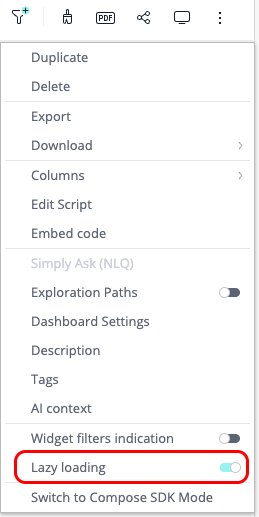
-
Load on Demand: A widget loads as soon as it becomes visible: when you scroll to it, resize the window, or reveal it with an add-on such as Tabber. It shows the usual loading indicator until its data arrives.
-
Filters, Refreshes, and Drills: Widgets in view re-query right away, and the rest re-query when you reach them.
-
Viewing and Embedding: Lazy loading applies in view mode and edit mode, and to dashboards embedded with an iframe or the Embed SDK.
-
Complete Exports: PNG and PDF exports always include every widget, fully loaded. Opening a preview first loads any widgets that have not loaded yet, so the preview may take a little longer to appear.
-
Kept with the Dashboard: The setting is kept when you duplicate a dashboard or export and import it as a
.dashfile, and it is available through the REST API.
Limitations
-
Widgets that are not visible have no data until they come into view, and the dashboard
refreshendanddomreadyevents fire when the visible widgets have rendered. Before turning on lazy loading, test add-ons, scripts, and embedding applications that expect every widget to load.
Dedicated AI Services for Managed Customers
Managed customers with strict data-governance requirements can now run Sisense Intelligence AI services inside their own dedicated Sisense environment, while keeping everything they get from a fully managed service.
-
Your AI Stays in Your Environment: AI processing, and the vector data behind AI search and indexing, stay within your dedicated environment instead of in shared Sisense cloud services.
-
Fully Managed, as Before: Your environment remains connected to Sisense cloud management, so managed upgrades and cloud features keep working, and the setting is kept across upgrades.
-
Your LLM, Your Rules: AI requests go only to the LLM provider you configure, including models that are reachable only over a private connection, such as a VPN.
-
No Change Unless You Opt In: Existing environments are not affected.
Availability
Available for managed single-tenant (dedicated) environments. Contact your Customer Success Manager, and Sisense Cloud Operations enables it for you.
Key Considerations
-
This option uses your own LLM (Bring Your Own LLM). Sisense-provided models are not available. If you switch an existing environment, you need to re-enter your AI provider settings.
-
Private network connections to your LLM are set up together with your IT team and Sisense Cloud Operations.
Memories (Beta)
The assistant can now remember personal context for each user, such as your role, the region you cover, or how you like answers presented, and it draws on that context when it is relevant to what you ask. You no longer need to repeat the same details at the start of every conversation.
Memories are available as a Beta. Your memories are private to you, and are not shared with other users.
The chat displays Updated memory when a memory is saved, and Used memory when a business or data memory shaped the answer.
Key Highlights
-
Remember in the Conversation: Ask the assistant to remember something, and it saves it as a memory with a short title and a category, such as Business definitions, Data and filters, Visualization and formatting, or About you.
-
Manage Your Memories: In the assistant sidebar, select Memories to see all of your memories, grouped by category. You can delete memories, and pin a memory to a specific dashboard. To add or edit memories, tell the assistant in the chat.
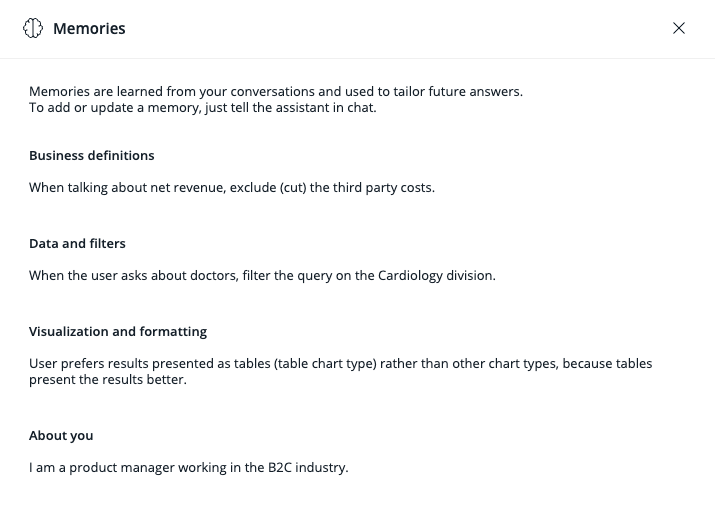
-
Memories Do Not Expire: A memory stays available until you or an administrator delete it.
-
Private by Design: Memories are kept separate for each user and each tenant. Administrators can delete a user's memories through the REST API (for example, when a user leaves the organization), but cannot view their content.
Limitations
-
Memories cannot be shared with other users or groups.
What’s Improved
Analytical Engine - Skewness Functions
-
The Analytical Engine (AE) now supports the Skewness (Sample) (SKEW) and Skewness (Population) (SKEWP) formula functions. Formulas that use them on data models running on the Analytical Engine now return the expected results, instead of an
Unsupported operatorerror. You can move data models that rely on skewness calculations to the Analytical Engine without rewriting their formulas.Key Highlights
-
Both Function Forms: SKEW and SKEWP work in both their one-parameter and two-parameter forms, and both forms are available in the formula editor.
-
Supported Data Sources: The functions are supported on ElastiCubes and on Live models.
Limitations
-
SKEW and SKEWP inside CONTRIBUTION, QUOTIENT, PASTYEAR, or GROWTH are not supported on PostgreSQL, Oracle, SQL Server, Redshift, BigQuery, MySQL, and SingleStore.
-
On Snowflake and Athena, groups of 2 rows return NULL for SKEWP, because that is how those platforms' own functions work.
-
Assistant - Canvas Improvements
-
The assistant canvas, where the charts, dashboards, and data models you build appear, has an updated design that keeps everything you need in one place.
Key Highlights
-
One Toolbar for Every Canvas: Charts, dashboards, and data models share the same toolbar at the top of the canvas, with the Artifacts menu on the left and actions on the right.
-
Code in the Canvas: Select Code to view the code for a chart or dashboard directly in the canvas instead of in a separate window, and copy it from the toolbar.
-
Artifacts Menu Always Available: After you close the canvas, the Artifacts menu stays available, so you can reopen anything you built in the conversation.
-
Resizable History Panel: In the full-screen assistant, drag the edge of the chat history panel to make it wider and read long chat titles.
-
Updated Error Messages: Error messages in the chat have an updated design that matches the rest of the assistant.
-
Assistant - Dashboard Narrative
-
You can now get a Dashboard Narrative directly from the assistant. Ask the assistant for insights about the dashboard you are working on, and it replies with the same AI-generated summary as the Dashboard Narrative widget: a short overview of the dashboard, followed by up to three key insights, each marked as positive, negative, or neutral. Viewers get a quick reading of the dashboard without leaving the conversation.
Like the Dashboard Narrative widget, this requires Sisense Intelligence with a configured LLM. As long as the assistant is enabled, its narrative is available even when Dashboard Narrative is turned off in the admin settings. In that case, narrative widgets and buttons stay hidden on dashboards, and the assistant does not offer to add the narrative as a widget.
Key Highlights
-
Ask in One Click or in Your Own Words: A new quick-action card on the assistant's home screen generates the narrative for the dashboard in context. Typing a request such as "Summarize this dashboard" gives the same result.
-
Consistent Results: The narrative in the assistant matches the Dashboard Narrative widget for the same dashboard and filter state.
-
Saved and Unsaved Dashboards: Narratives are available for saved dashboards, and for dashboards you build in the assistant canvas.
-
Add to Dashboard: Users who can add widgets to the dashboard can add the narrative as a Dashboard Narrative widget directly from the assistant's response.
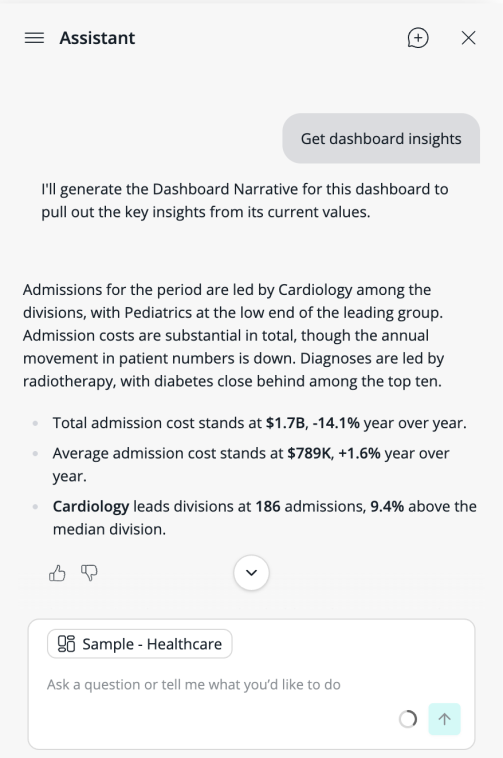
-
Assistant - Data Model Display Names
-
The assistant now refers to a renamed data model by its Display Name wherever it names the model, both on its cards and in the text of its replies, so a model no longer appears under two names in the same answer. The queries and charts the assistant builds still use the model's Identity Name, so renaming a model does not change the assistant's results.
Key Highlights
-
Consistent Names: The lists of available data sources and data models, the header of a model's fields, and the assistant's replies all show the display name, including for data models that have never been built.
-
Search by Display or Identity Name: In the Data tab, you can search the list of available data sources by display name or identity name, and hovering over a model shows both names. Search in a dashboard uses the display name only.
-
No Build Needed: The assistant picks up a new display name right away, without a build or Publish Semantics. If the assistant is open when you rename a model, its replies use the new name the next time you open it.
-
Assistant Sidebar - One Assistant Across Analytics
-
The Assistant Sidebar is no longer tied to a single dashboard. Your conversation continues as you move between dashboards, and your chat history belongs to you, so you can return to a previous conversation without remembering which dashboard it started on.
Key Highlights
-
Conversation Follows You: When you open another dashboard while the sidebar is open, the conversation continues, and the assistant works with the dashboard now on screen. Each time you open the sidebar, a new conversation starts.
-
One Chat History: The chat history lists all of your sidebar conversations, wherever they started, with the most recent first. Each chat shows the dashboards and widgets it covered, and you can load older chats at the end of the list.
-
Start from the Analytics Home Page: The sidebar is also available on the Analytics home page, before you open a dashboard. Select Explore your data model to ask questions about your data and build charts in the chat.
-
Open Dashboards from the Chat: Ask the assistant to open a dashboard you have access to, and it opens in Analytics.
Limitations
-
After the upgrade, the sidebar chat history starts empty. Earlier chats, which were saved per dashboard, are not moved to the new history. They remain available in the full-screen assistant pop-up if the assistant sidebar is turned off.
-
Chats in the Assistant tab are kept in a separate history, and do not appear in the sidebar.
-
Bring Your Own LLM - Google Vertex AI and New Models
-
Sisense Intelligence now supports Google Vertex AI as a Bring Your Own LLM (BYO LLM) provider, and adds newer OpenAI models.
Google Vertex AI
Organizations that run on Google Cloud can now use their own Google Cloud project, in the region they choose, to power Sisense Intelligence features.
-
Supported Models: Anthropic Claude Sonnet 5.5 and Opus 5.5, and Google Gemini 3.8 Flash and 3.6 Flash.
-
Service Account Authentication: Instead of an API key, you register a Vertex AI model with your Google Cloud project, region, and a service account key (JSON) in the Sisense Intelligence admin settings.
-
Prompt Caching for Claude: Repeated prompt content sent to Claude models on Vertex AI is cached automatically, which reduces the input tokens processed on each request.
-
Organization Policy Requirements: To use Claude Opus 5.5 or Sonnet 5.5 with Narrative and Dashboard Narrative, your Google Cloud organization policy must allow Claude structured outputs, which Vertex AI disables by default. In Allowed partner model features (
constraints/vertexai.allowedPartnerModelFeatures), allowpublishers/anthropic/models/claude-sonnet-5-5:structured_outputsandpublishers/anthropic/models/claude-opus-5-5:structured_outputs. This requires the Organization Policy Administrator role. Without it, narrative requests fail with an error that names the policy.
New OpenAI Models
The following models are now supported with the OpenAI and Azure OpenAI providers:
-
GPT-5.4
-
GPT-6.1 Sol, GPT-6 Sol, GPT-6 Luna, and GPT-6 Astra
Limitations
-
Vertex AI requires a Google Cloud project with Vertex AI enabled, and a service account that has access to the models you register.
-
Calculated Dimensions - ToDateTime Function
-
Calculated Dimensions now support the ToDateTime() function, which converts a text value to a date and time when the widget runs. Previously, ToDateTime() was available only in custom columns and custom tables, where it is evaluated when the data model is built. You can now convert text dates directly in the formula editor and work with the result like any other date, without adding a custom column to the data model. The function is supported on both ElastiCube and Live models.
Key Highlights
-
Works Like a Date: Select a date level (years, quarters, months, weeks, days, hours, or minutes), and filter and sort by the result. You can also compare against a fixed date in
CASE WHENexpressions, for exampleToDateTime('2024-01-01'). -
Supported Text Formats: The text must use the
YYYY-MM-DDorYYYY-MM-DD HH:mm:ssformat, for example2024-03-15or2024-03-15 14:30:00. On Live models, values in other formats return an empty value. On ElastiCube models, the widget shows an error that lists the expected formats. A fixed date in an unsupported format is rejected when the formula is validated. -
Build to Destination: Custom columns that use ToDateTime() now use the same conversion when they are built into a cloud data warehouse. After the next build, PostgreSQL and Redshift keep the time part of the value instead of setting it to midnight, which can change reports that compare exact date and time values. Builds to Azure Synapse and Microsoft Fabric that previously failed now succeed.
Limitations
-
Fiscal years are not supported. If the fiscal year does not start in January, the year, quarter, month, and week levels return an error. The day, hour, and minute levels still work.
-
Formulas that require a date column in the data model, such as PastYear or Growth, are not supported with the result.
-
Dashboards - Widget Loading Animation
-
While a widget loads, dashboards now show a skeleton placeholder with a shimmer animation in the widget's place, instead of the previous three-dot loading animation. The new animation appears for all widget types, including the Filter Widget. Dashboards look cleaner while data loads, and viewers can easily tell which widgets are still loading.
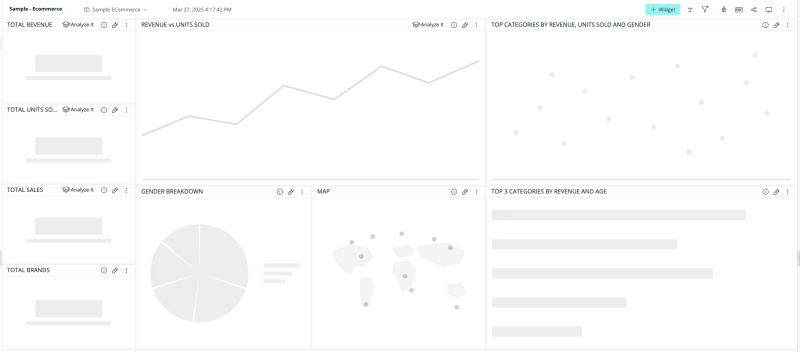
Data Modeling - PII Suggested Tag
-
When you add tags in a data model, PII now appears as a suggested tag. Use it to mark tables and columns that contain personally identifiable information (PII) with the same tag every time, instead of typing your own, so PII is classified consistently and is easy to find with tag search (
#).
Filter Widget - Rank and Numeric Range Filters (Beta)
-
The Filter Widget now includes two more filter types: Rank, which keeps only the top or bottom results of a dimension, and a numeric Range with a slider, for filtering values between a minimum and a maximum. Dashboard designers choose them in the widget editor under Design > Filter Settings > Filter type, and viewers adjust them directly on the dashboard, without opening the filters panel. Both filter types are available as a Beta.
Key Highlights
-
Rank Filters: Show the top or bottom N members of a text, numeric, or date dimension, ranked by a field the designer selects, for example "Top 10 by Revenue". Viewers can switch between Top and Bottom, change the number of results, and change the date level for date dimensions, while the Ranked by field stays fixed.
-
Numeric Range Slider: Filter a numeric dimension with Minimum and Maximum fields and a two-handle slider between them. Typing a value moves the handle, and dragging a handle fills in the field.
-
Open-Ended Ranges: Leave either bound empty to filter on values above a minimum or below a maximum. Moving a handle to the edge of the data leaves that end open, so rows added later are still included.
-
Filter Widget - Time Frame Filter (Beta)
-
The Filter Widget now includes a Time Frame filter type for datetime dimensions. Viewers pick a ready-made relative time frame, such as Today, Last 7 days, This month, or This year, from a short list on the dashboard, and the filter applies right away. Because the time frames are relative, the filter stays current without anyone updating its dates. Dashboard designers choose Time Frame as the filter type in the widget editor. The Time Frame filter type is available as a Beta.
Key Highlights
-
Default Time Frames: Out of the box, the filter offers a common set of 11 time frames: Today, Yesterday, This week, Last week, This month, Last month, Last 6 months, This quarter, Last quarter, This year, and Last year.
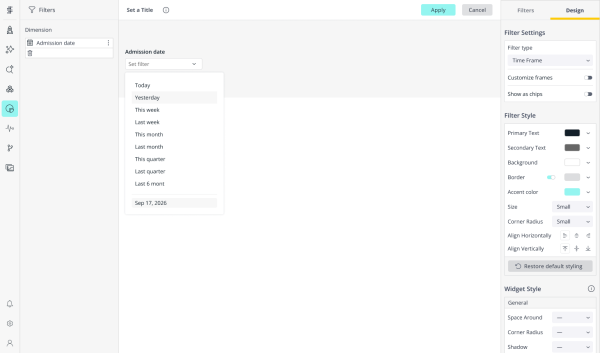
-
Customize Time Frames: Turn on Customize time frames to choose which time frames this filter shows, grouped by days, weeks, months, quarters, and years, including rolling ranges such as Last 30 days and future ranges such as Next quarter. The Time Frame filter needs at least two time frames, and Restore defaults brings back the common set.
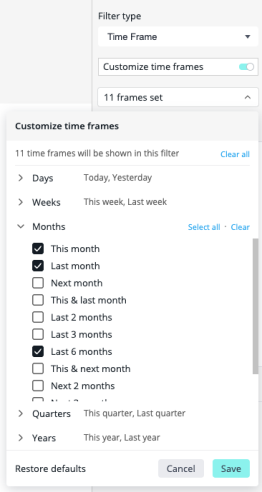
-
Preview the Dates: Hovering over a time frame in the list shows the date range it covers on a preview bar below the list, and hovering over the filter shows the dates of the selected time frame.
-
MCP Server - Pulse and Data Preview Tools
-
AI agents connected to the Sisense Model Context Protocol (MCP) Server, such as Claude, ChatGPT, Cursor, or your own copilots, can now work with your Pulses and look up the values stored in your data. These new tools let agents answer more questions about your Sisense environment from inside the AI tools your team already uses. Every tool runs with the signed-in user's own permissions, so an agent sees only the Pulses and data that user can already access.
Key Highlights
-
Review Pulses and Their History: Agents can list your Pulses, show how a Pulse is defined, and walk through its run history, including each run's outcome, the values behind it, and the notifications it sent.
-
Run a Pulse on Demand: Agents can run an existing Pulse right away and report whether its condition is met, without waiting for its next scheduled run.
-
Filter on Real Values: A new data preview tool lets agents read the distinct values stored in a text column before they build a query, so filters use the values in your data instead of guessed spellings.
Limitations
-
Agents cannot create a new Pulse or change an existing one, including its notification settings, through the MCP Server. Create and manage Pulses in the assistant.
-
The Pulse tools work with Pulses created through the assistant, not with classic Pulse alerts.
-
Notebooks
-
The Python 3.7, 3.8, and 3.9 notebook environments no longer include GPL-licensed libraries.
Report Manager - Custom Email Subject and Message
-
You can now write a custom email subject and message for each report you schedule in Report Manager. Use the message to explain what the report contains and to add any other information recipients need, directly in the report settings, without editing the tenant-level HTML email template.
-
Default Template: By default, reports continue to use the standard email template configured by your administrator.
-
Custom Subject and Message: In the report settings, choose to set your own subject and message for the report. The message is plain text.
-
Dashboard Link: When the report includes a link to the dashboard, the link is added to the email automatically, and you can add your own text before it.
-
Usage Analytics - AI Usage (Beta)
-
Usage Analytics now records activity from Sisense Intelligence AI features, so administrators can see whether the AI features they enabled are being adopted: who uses them, which ones, and how often. AI usage tracking is available as a Beta. More details will be added here soon.
What’s Fixed
Access Control
-
Previously, in version 2026.3.1, folder owners were incorrectly granted full ownership permissions (including the ability to delete, share, and transfer) for all dashboards in their folders. Folder owners now correctly inherit Editor permissions for dashboards they do not directly own, so administrative actions, such as deleting a dashboard or transferring its ownership, are restricted to the actual dashboard owners.
Note:
This issue was resolved by blocking the enforcement of the affected permission schema on version 2026.3.1. Full ReBAC (Relationship-Based Access Control) functionality requires version 2026.3.2 or later.
Accessibility
-
Previously, several icon-only buttons on the Home (dashboards) page had no accessible names, so screen readers announced them only as a generic "button". Localized accessible names have been added to the dashboard list checkboxes, the tile "more" menus, the search submit buttons, and the
jumpToDashboardinfo button, in compliance with WCAG 4.1.2. -
Previously, screen readers (such as JAWS and VoiceOver) incorrectly focused on decorative icons in the dashboard and widget toolbars and announced them as "Image". These icons are now hidden from assistive technologies, which makes navigation cleaner and more efficient for screen reader users.
-
Previously, screen readers incorrectly announced decorative warning icons on the "Error querying your data model" dashboard overlay and on full-page error views (such as "Query Error" and "DB unauthorized"). These icons are now hidden from assistive technologies, so screen reader users can focus on the error titles and messages.
Add-ons
-
Metadata - Previously, columns renamed (aliased) with the Metadata add-on were intermittently missing from the Add a Field and Select Data lists in the Data Browser, even though the backend returned them correctly. Users had to search for the field names to make them appear. Aliased fields are now consistently sorted by their display titles, and appear in the field picker list by default.
Analytical Engine
-
Previously, dashboard widgets intermittently failed to load with an
Internal Analytical Engine ErrororWeeks dimension is not supportederror, particularly when a dashboard was loaded for the first time. This was caused by a metadata leak during view expansion in the Analytical Engine. Model views are now properly isolated within the requesting session, so dashboards load reliably.
Assistant
-
Previously, when a dashboard contained a cascading filter, the assistant failed to interpret the dashboard context correctly: all dashboard filters were dropped from the assistant's context, and a non-existent, unreadable "chart" widget was reported. The assistant now translates cascading filters correctly, so all dashboard filters are recognized, and failures to translate individual filters are reported more clearly.
-
Previously, widgets created by the assistant lost their sort order when added to a dashboard with Add to Dashboard. The sort order defined in the assistant is now kept.
-
Previously, in the Analytics assistant, users occasionally saw no answer or clarifying question after a query. This occurred with the Claude Sonnet 5.5 model, which sometimes returned its final response inside a hidden reasoning block instead of as visible text. The assistant now always generates its final response as visible text before ending the interaction.
-
Previously, when a query failed to translate (for example, because of conflicting date filters on the dashboard), the error message sent to the assistant was truncated before the actual reason. As a result, the assistant could not see the cause of the failure, and sometimes told users to remove filters that were not responsible. The translation error reason now appears at the start of the message, so the assistant receives the actual cause and can point users to the correct filter.
-
Previously, the assistant ignored changes to dashboard filters (such as adding, removing, or editing filters) until the page was refreshed. The assistant now synchronizes with the current dashboard filter state before each query, so its responses reflect the latest filter configuration without a page reload.
-
Previously, AI-powered features, such as the assistant and NLQ, incorrectly reported provider rate limits as token quota errors. Rate limit details are now identified and surfaced correctly, including the retry timing and the source of the limit (for example, a provider throttle versus a Sisense-managed quota). Users now receive accurate error messages, and the system can back off and retry instead of failing immediately.
-
Previously, the assistant applied dashboard filters that the user had switched off, so it analyzed a subset of the data instead of the full dataset visible on the dashboard. The assistant now ignores disabled filters, so its analysis matches the data displayed in the dashboard widgets.
-
Previously, the assistant failed to reuse existing widget queries when the widget contained date dimensions with a "(Calendar)" suffix. These dimensions were translated into invalid column names (for example,
DateCalendar), which prevented the assistant from copying the widget's logic accurately. The data schema is now applied correctly during translation, so the assistant identifies and maps calendar date columns properly. -
Previously, the assistant silently removed chart-level customizations, such as sorting, trend lines, and forecasts, when a follow-up request changed the chart's columns (for example, adding or replacing a measure). The assistant now keeps these settings when the relevant columns remain in the chart. If a customization cannot be kept because of structural changes, the assistant now tells the user, instead of reporting the task as "Done" as if the old settings still applied.
-
Previously, the assistant failed to generate queries when a dashboard contained multiple date filters at different levels (for example, Year and Month) for the same date column. An overly restrictive validation rule in Compose SDK incorrectly flagged these valid filter combinations as conflicting, which prevented the assistant from merging the dashboard context into its results.
-
Previously, the assistant over-selected column, bar, and indicator charts, regardless of the data requested. The assistant's chart selection logic now provides more relevant visualizations. When asked for geographic breakdowns (such as revenue by country or state), the assistant defaults to an area map instead of a bar chart, and displays all locations instead of limiting the view to the "Top 10". The assistant also supports a wider variety of chart types, including treemaps, funnels, and boxplots, to better match users' questions and data fields.
Build
-
Previously, ElastiCube builds could randomly fail with a dimension table corruption error (
BE#022427) when data indexing was enabled. A timing conflict during parallel processing allowed an in-memory dictionary to be rebuilt prematurely, which led to data overwrites and validation failures. The dictionary now correctly tracks the data position from the active file writer, which maintains data integrity even under high system load or in complex parallel builds.
Compose SDK
-
Previously, in Compose SDK, the action menu (⋮) remained active on filter tiles even when the filter was disabled. The menu is now hidden for disabled filters, consistent with the Fusion dashboard.
-
Previously, Compose SDK charts and indicators used generic English-based formatting for all locales. This resulted in incorrect decimal and thousands separators, inconsistent number abbreviations (for example, "K" instead of "Tsd" in German), and hard-coded English text in ranking filters. All Compose SDK visualizations, including axes, tooltips, data labels, and indicator values, now apply locale-specific formatting and translations that match the Sisense Fusion experience across 13 supported languages. In addition, calendar heatmap tooltips now show dates in a localized format instead of the ISO format.
-
Previously, in Compose SDK, dashboard filters that contained a background filter lost their locked or disabled status when the dashboard was opened in Compose SDK mode. These filters incorrectly appeared as unlocked and enabled, even when they were configured otherwise in the Fusion dashboard. The locked and disabled states are now preserved for all filter types.
Connection Management
-
Previously, no loading indicator was displayed while the table list was fetched for Athena connections in the Live model creation flow. After you click +Data, a progress indicator is now displayed during long-running schema retrievals, until the table list is fully rendered.
Connectors
-
Previously, in the MongoDB native connector, SSL was incorrectly enforced for connections that specified multiple hosts in the Location field, even when SSL was explicitly disabled. The connector now respects the
SSL=false(orssl=false) parameter in the Additional Parameters field for multi-host configurations, such as internal replica sets that do not require SSL. Existing single-host connections, and multi-host connections without an explicit SSL parameter, are unchanged, to maintain compatibility with MongoDB Atlas.
Custom Code
-
Previously, widgets that use Custom Code Transformations failed to load for viewers authenticated with Web Access Tokens (WAT) when unrelated browser cookies were present. The system incorrectly prioritized these cookies over the WAT authentication, which caused unauthorized (401) errors for internal API calls within the notebook. WAT-authenticated requests now use a dedicated token and ignore unrelated cookies.
Dashboard Co-Authoring
-
Previously, the
GET /dashboards/{dashboardId}/widgetsREST API endpoint incorrectly returned an empty list of widgets when a dashboard had unpublished changes and an administrator had added themselves as a co-owner through the Administrator View. Dashboard widgets are now accessible through the API, regardless of co-authoring status or administrative ownership changes.
Data Models
-
Previously, in the AI Readiness Studio, deleting the last remaining golden question in a data model failed to save. The save request returned a validation error, so the deleted question reappeared after the page was reloaded. The golden set can now be cleared and saved when all questions are removed.
Data Security
-
Previously, saving a Data Security rule on a Live Snowflake field failed when the selected values included a NULL member (displayed as N/A in the UI). The NULL member was sent as a null value instead of a string, so the request was rejected with a 400 error (
Rule is not valid: unsupported member type was inserted) and the rule was not saved. NULL members are now converted into a valid string value, so Data Security rules can be saved and applied on Live Snowflake fields that contain NULL values. -
Previously, in environments with a large number of Data Security rules, the queries that retrieve these rules from MongoDB were inefficient, which caused high MongoDB CPU consumption and slowed widget loading. These queries are now optimized on both the backend and the frontend, which can reduce widget loading time by several seconds in environments with millions of Data Security rules.
Email Reports
-
Previously, dashboard report emails failed to be delivered because of performance degradation in the Storage Service. CPU-intensive operations, such as file sanitization, blocked the service's event loop during internal upload requests, which led to timeouts and failures. Internal storage calls are now optimized by removing unnecessary validation steps, so reports are delivered reliably even under high load.
-
Previously, a single scheduled dashboard subscription could trigger multiple parallel executions, which sent duplicate emails to users. This occurred because previous job instances were not stopped before a job was re-initialized (for example, during a service restart or update). Only one active schedule now exists per job, so each scheduled trigger sends a single email.
Export to Excel v2
-
Previously, when a custom fiscal year start was configured, exporting a widget to Excel showed the wrong fiscal quarter. The exporter did not account for the fiscal month offset, so the exported file showed the previous quarter (for example, Q1 instead of Q2) compared to the widget. Fiscal date formatting in Excel exports now matches the widget.
Export to PDF
-
Previously, in dashboard PDF exports, the last rows and the Grand Total of pivot widgets with automatic height were sometimes cut off. This occurred when the pivot rendered more rows than the height saved in the dashboard layout. The cell height is now adjusted dynamically during export to fit the full content.
Note:
A widget taller than a full PDF page is still cut at the page edge.
Exporting Dashboards
-
Previously, the dashboard and widget export dialog remained stuck in a loading state ("Your file is being prepared") when the export request timed out. The dialog now identifies timeout errors (HTTP 504) and displays the message "The connection timed out. Ask your Administrator for more information."
Filters
-
Previously, on dashboards with primary filters, a viewer's filter selections could incorrectly overwrite the filter configuration for all other users, including the dashboard owner and the published version. This occurred when the system re-validated a viewer's filters against their Data Security context, and applied the resulting changes globally instead of only to that viewer's instance. Filter adjustments are now scoped to the requesting user's own dashboard instance, so other users' views are not affected.
-
Previously, the quick-select buttons in the date filter (for example, Earliest date, Today, and Latest date) overflowed their borders when the UI was translated into Spanish or Portuguese. The buttons now support multi-line text and flexible heights, so longer localized captions wrap within the button without overlapping adjacent elements.
-
Previously, date levels already used by another filter on the dashboard were still available for selection in the filter widget, which could create duplicate filters on the same date level. Used date levels, including those from disabled filters, cascade levels, and empty filter widgets, are now hidden across all filter types and level selectors.
Formulas
-
Previously, the MEDIAN function was unavailable for Google BigQuery Live connections. MEDIAN did not appear in the formula editor's function list, and formulas entered manually with MEDIAN returned an "unknown error" at query time. The MEDIAN function is now fully supported for BigQuery Live models, appears in the formula editor, and evaluates correctly.
-
Previously, in the legacy formula editor, the filter popup did not open on the first click, or opened in the wrong location. This occurred because the popup's anchor element was detached when the token menu re-rendered. The filter popup now anchors to the token's position and opens on the first click, regardless of the navigation layout.
Infra
-
Previously, the
ecm-summaryCronJob pods were incorrectly tagged with theapp: model-graphqllabel. As a result, themodel-graphqlHorizontal Pod Autoscaler (HPA) included these short-lived job pods in its calculations, which led to HPA failures (ScalingActive=False) and a potential "Degraded" health status in GitOps tools such as ArgoCD. Theecm-summarypods now have a unique label, so they are excluded from themodel-graphqlHPA. In addition,successfulJobsHistoryLimitandttlSecondsAfterFinishedare now exposed underecmSummaryinvalues.yaml, for better management of completed job pods. -
Previously, the API Gateway could become unrecoverable after a ZooKeeper session expiry or infrastructure instability, causing a site outage with HTTP 502 errors until the service was restarted manually. The API Gateway now exits and restarts automatically if it does not receive a termination signal within a bounded time, and the liveness probe triggers a restart if the pod stays unready for an extended period.
-
Previously, automatic backups (
sisense_assets_collector) could hang or fail to complete when customer-uploaded branding assets had restricted file permissions. The backup process now makes its temporary staging directories writable before cleanup, and fails fast on permission errors to prevent excessive logging and job timeouts.
Installation
-
Previously, the
migration-3job (specifically thewidgetsToDeltasstep) could fail with an Out of Memory (OOMKilled) error during upgrades on environments with high CPU core counts (for example, 64 cores). The number of migration worker threads scaled automatically with the host's CPU count, without considering the container's memory limits. The worker pool is now container-aware: it caps the number of concurrent workers and allocates memory limits per thread, so migrations run reliably regardless of the host machine's size.
Multitenancy
-
Previously, on self-hosted deployments with multitenancy enabled and more than one tenant, the MCP endpoint (
/mcp) was unreachable, because the system incorrectly treated "mcp" in the URL path as a tenant name. Requests returned the Sisense "Page not Found" page instead of reaching the MCP Server, so MCP clients could not connect. The/mcppath is now recognized as a reserved system path, so MCP clients can connect on multi-tenant self-hosted deployments. -
Previously, after an upgrade, the system tenant could not be allocated the full credit amount if credits had been used before. The system incorrectly referenced the current balance instead of the initial balance. Credit allocation now uses the initial balance.
Narrative
-
Previously, using Claude Sonnet 5.5 on Vertex AI as a Bring Your Own Key (BYOK) model caused features that rely on structured JSON output, such as Narrative, to fail with a 422 error. The system attempted to use forced tool calls for JSON schemas, which this model does not support on Vertex AI. JSON schemas are now sent using the Vertex AI native structured output format.
Note:
To use this fix, make sure that your Google Cloud Platform (GCP) organization policy allows the
publishers/anthropic/models/claude-sonnet-5-5:structured_outputsfeature within thevertexai.allowedPartnerModelFeaturesconstraint. -
Previously, users were redirected to the home page when they opened a dashboard that contained widgets with narratives, if the Narrative feature was disabled in the license but still enabled in the system configuration. The server returned an "Unauthorized" (401) error instead of a "Forbidden" (403) error, which the browser interpreted as an expired session. A license denial no longer logs the user out, so the dashboard loads and the widget displays the appropriate permission message.
-
Previously, when a dashboard narrative could not be generated because of quota limits, configuration issues, or unsupported widget types, the system returned a generic "500 Internal Server Error". The system now returns specific status codes, such as 429 when the quota is exceeded, or 422 when none of the dashboard's widgets can be narrated, so users and administrators can better understand and resolve the cause.
Natural Language Query (NLQ)
-
Previously, follow-up edits in Natural Language Query (NLQ) were sometimes ignored, or failed to remove the last remaining item of a kind in a query (such as a single measure, dimension, or filter). The system could not distinguish between a technical failure and an intentional request to clear a component. The NLQ engine now identifies and applies requests to remove the final item in a category, and surfaces errors when an edit fails, so user modifications are accurately reflected in the query.
-
Previously, in the Analytics assistant, natural language queries that involved period comparisons (for example, "this year vs last year") occasionally returned results with only dimensions, without any measures or filters. This occurred when the underlying AI model included multiple code blocks in its response, which caused the system to parse an empty query state. The system now identifies the intended query data, so valid measures and filters are no longer dropped during aggregation.
-
Previously, in Natural Language Query (NLQ), date filters for years, quarters, or months incorrectly included the first day of the following period. As a result, queries such as "What was the total revenue in 2012?" returned aggregated data for both 2012 and 2013. The end of these date ranges is now set to the last day of the requested period, so results are accurate across the assistant, the Sisense MCP Server, and Pulse authoring.
Notebooks
-
Previously, creating or editing a Notebook resulted in a blank screen if the underlying data model contained a custom column with missing metadata (specifically, the internal ID). The missing metadata is now restored automatically when the data model loads, so Notebooks load correctly even if the stored column definition is incomplete.
Pivot Tables
-
Previously, Pivot widgets intermittently failed to load, or displayed a "Query was canceled due to service fail" error, during system scaling events. The pivot service did not handle termination signals gracefully, so active queries were interrupted when the system scaled down. The service now drains in-flight queries before shutting down, so all requests are completed or properly routed.
-
Previously, exporting a Pivot widget to Excel, or receiving it as a Report Manager attachment, failed with a 500 error when a cell had a conditional background color rule with an empty value and a matching data bar rule. The export now completes successfully, and applies standard styling to cells whose background rules are incomplete.
-
Previously, Pivot widgets failed with a
RUN_QUERY_ERRORerror when using formulas with deeply nested RANK functions or composite measures (for example, multiplying two aggregated fields) across complex data models with multi-hop, non-unique join paths (fan-out). The generated SQL placed window functions in a way that MonetDB could not process. The necessary query layers are now inserted automatically to handle nested rankings and composite aggregates, so these widgets return data as expected.
Pulse
-
Previously, the assistant stated the wrong weekday when confirming the next scheduled check for a Pulse workflow. The assistant now displays the correct weekday, date, and time of the next check, in the schedule's time zone.
-
Previously, Pulse alerts based on forecasts were triggered incorrectly because of a mismatch in data granularity. The system could compare a single-period forecast (for example, one day) against a multi-period budget total (for example, seven days), which caused alerts to fire regardless of actual performance. Forecasts are now compared against figures of the same grain, so Pulse notifications are accurate.
Report Manager
-
Previously, CSV and XLS reports generated through Report Manager did not include certain filter names in the "Filters:" header. This occurred with relative dates (for example, "This & Last Year"), rankings, and certain numeric and text conditions. All filter types are now identified and named in the exported files, matching the behavior of direct widget downloads.
-
Previously, in Report Manager, users with the Viewer role could not see or select dashboards in the Select Dashboard picker. The dashboard list failed to load if the user did not have permission to view dashboard owner details. The dashboard list now loads for Viewers, and displays the dashboard titles even when owner information is restricted.
-
Previously, when a dashboard built on a Live model was exported to PDF through Report Manager, widgets whose live queries exceeded the live query timeout were included in the PDF with a "Live Connection Timeout" error placeholder. Report Manager recorded the export as successful, did not retry it, and emailed the incomplete PDF to recipients without any warning. Report Manager now checks for widgets that failed to load during the PDF export, retries the export, and reports the failure, instead of silently delivering an incomplete report.
-
Previously, in Report Manager, the recipients endpoint (
GET /api/v1/report_manager/dashboard/{dashboardId}/recipients) could return the "Everyone" group, and other groups that a non-admin user does not belong to, even when the Limit Users Sharing to Their Own Groups setting was enabled. When this setting is enabled, non-admin users can now see and select only the users and groups they share a group with. -
Previously, in Report Manager, deleting a report while it was pending or running did not stop the export process, so the engine continued generating it and sending emails to all recipients. The deletion removed the report's record before the engine was notified to cancel the active run. Deleting a report now immediately cancels any in-flight jobs, and the engine can stop processing even if the deletion occurs during the initial setup phase.
REST APIs
-
Previously, updating a column description in a custom table through the REST API (
PATCH /schema/datasets/table) failed to apply the description, and caused the table to become hidden in the Sisense UI. Table-level and column-level metadata (semantics) are now preserved and synchronized when you use the API to update custom tables and custom code tables. -
Previously, creating a user through the REST API (
POST /api/v1/users) failed with an "Invalid user locale" error when using regional locales such asen-AU,en-GB, orfr-CA. All valid regional formatting locales are now validated and accepted during user creation, consistent with the update (PATCH) process, so those users get the correct date and number formatting.
Security
-
Previously, users with roles other than Designer or Administrator, including Viewers and Consumers, could create or modify BloX templates and custom actions, and delete cards or custom actions. These actions are now limited to Designers and Administrators.
-
Previously, when the Content Security Policy feature was enabled and one or more domains were added to the Embedded Domain White List, the
object-srcdirective in theContent-Security-Policyheader combined the'none'keyword with the whitelisted domains. Because'none'must be the only source expression in a CSP directive, browsers logged a console error and ignored'none', so theobject-srcdirective allowed the whitelisted domains instead of blocking plugin content. Theobject-srcdirective is now set to'none'only, which keeps the header valid regardless of the embedding whitelist.
Session Management
-
Previously, the Log in as user (impersonation) feature failed when
security.authenticationModewas set toserver. In this configuration, a race condition caused the original administrator session to immediately overwrite the impersonated session. This prevented the administrator from accessing the target user's account, and made the Return to admin button non-functional. Session updates are now restricted to the active user, so the impersonated session stays intact and the administrator can return to their own account.
Sisense Intelligence
-
Previously, AI-related error messages, such as credit limit exhaustion, were not classified correctly, so users received a generic "Something went wrong" error instead of specific guidance. The consumption service now exposes error codes correctly, so users receive accurate feedback when they reach their allocated credit caps.
-
Previously, the "AI quota exhausted" banner incorrectly appeared and disabled the Generate button during semantic enrichment for tenants that use their own LLM keys (Bring Your Own Key). Sisense-managed credit quotas are no longer applied to BYOK configurations, so AI-powered semantic enrichment works regardless of the Sisense credit balance.
-
Previously, registering or using certain AI models (such as newer Anthropic Claude models on Bedrock, or specific Azure models) failed, because the system sent a temperature parameter that these models no longer support. The system now automatically identifies which models accept this parameter, and includes a retry mechanism so connections succeed even if a provider's requirements change.
-
Previously, reaching the AI credit limit for a group or tenant resulted in a generic "Something went wrong" error message. These quota limits are now identified correctly, and the following message is displayed: "The AI usage quota has been exceeded. Please try again later."
-
Previously, AI credits were not automatically allocated to the System Admin group after upgrading to a version with the credit allocation feature, when the Custom Language Foundation (CLF) toggle was already enabled before the upgrade. Credits are now allocated during the upgrade if the CLF toggle is enabled.
-
Previously, registering or testing an Azure AI Foundry model (such as Claude on Azure) through the public LLM API failed with a 422 schema validation error, because the API did not accept
azure_aias a provider value.azure_aihas been added to the supported providers, so Azure AI Foundry models can now be registered and tested through the API. -
Previously, AI-related license changes, such as enabling Bring Your Own Key (BYOK), were not always applied to the AI integration service. Because of a startup race condition, the service could miss license updates, and a manual pod restart was required to apply the new license state. The service now listens for license updates and applies them as soon as they are broadcast.
Widgets
-
Previously, in Scatter Charts, the widget preview did not re-render after a dimension was removed from the X-axis and then added again. This caused a console error, and users had to click Apply to see the updated chart. The preview now reflects changes to the X-axis dimensions immediately.
-
Previously, value labels were missing from Box & Whisker plots, and category labels were truncated in Polar charts. Box & Whisker plots now display all five value labels (median, q1, q3, high, and low), and Polar chart labels wrap instead of being cut off with an ellipsis. This applies to both the live dashboard view and exported dashboard images.
-
Previously, when Highcharts accessibility was enabled, point markers remained visible in line and area charts even when they were disabled. This occurred because the transparency settings that hide markers while keeping them keyboard-focusable were not applied. Markers now appear only when intended in Compose SDK applications and Pulse KPI alert tiles, without affecting accessibility.
-
Previously, hidden widget toolbar buttons could overlap adjacent widgets on a dashboard. This caused tooltips to appear for the wrong widget and interfered with interactions, such as automated UI tests, near widget boundaries. Hidden toolbar elements now stay within their own widget's bounds.