Email-Based Two-Factor Authentication (2FA) for Sisense Native Users
Last updated: October 5, 2026
| Tier | Deployment |
|
|
Email-based Two-Factor Authentication (2FA) adds an additional layer of security for Sisense users who authenticate with a username and password (native users). When 2FA is enabled, users must enter a one-time verification code sent to their email after successfully entering their credentials.
About Two-Factor Authentication
2FA requires users to provide:
-
Their Sisense username and password
-
A one-time verification code sent to their registered email address.
By requiring both, Sisense significantly reduces the risk of unauthorized access due to password reuse, phishing, or credential theft, which is especially important in distributed and work-from-home environments.
Supported Users and Scenarios
Sisense supports multiple authentication methods:
-
Named (Native) Users: Users created directly in Sisense with a username and password. See Managing Users for more information.
-
SSO/AD Users: Users created and/or authenticated via an external Identity Provider (IdP) using Single Sign-On (SSO) or Active Directory.
-
Web-Access Token: Stateless and volatile access to the analytics via a web access token.
Email-based 2FA applies only to Native Sisense users who sign in with a username and password.
Sisense email 2FA does not apply to externally created and managed users such as SSO or Active Directory (AD) users. These users rely on the MFA/2FA mechanisms provided by the IdP (for example, Okta, OneLogin, Azure AD). Sisense does not add an additional 2FA step for them.
To Sign-in Using 2FA:
-
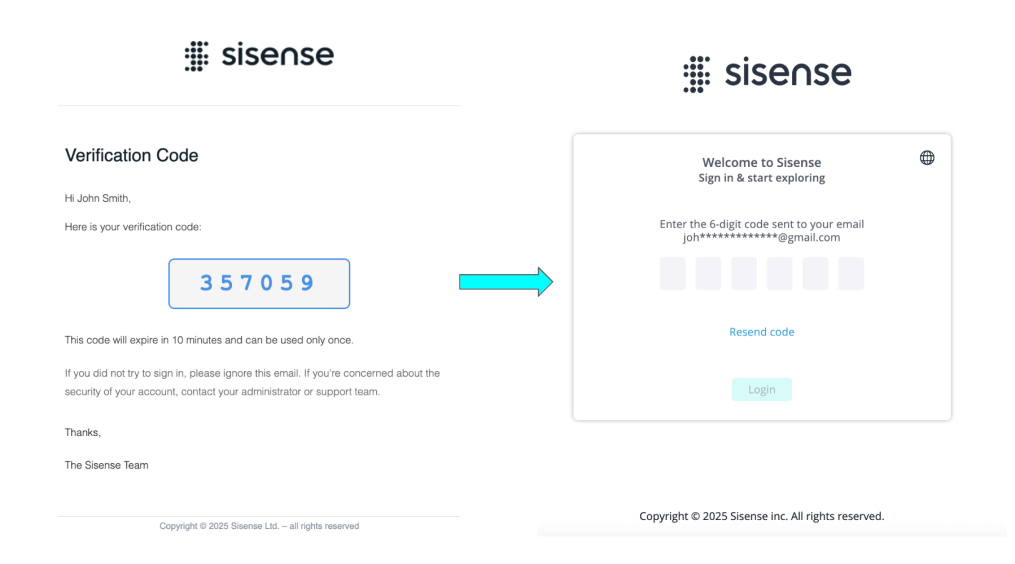
Navigate to the Sisense login page and enter your username and password. Sisense alerts the user that a one-time password (OTP) will be sent to the user’s email.
-
Enter the OTP you received via email on the 2FA screen. You will be redirected to the application. If the OTP is invalid or expired, you will be redirected to the page you were using when the session expired.
Enabling and Configuring 2FA
2FA is controlled with a cascading combination of the following settings:
-
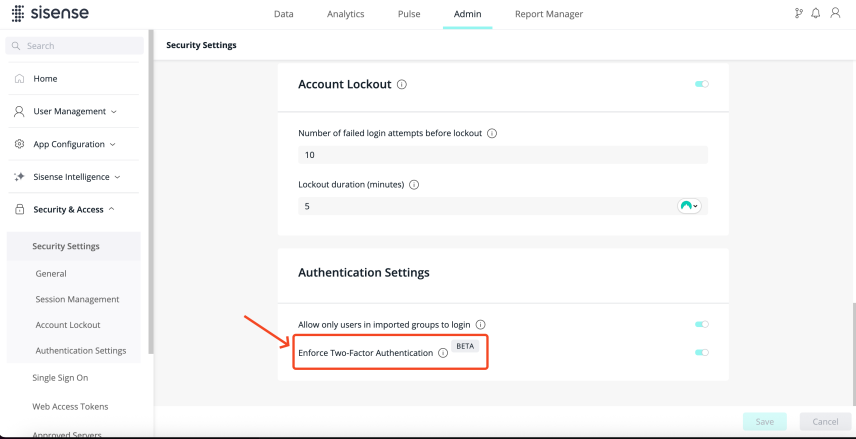
Deployment-wide feature toggle - Controls whether email-based 2FA is active for the entire deployment.
-
Located in: Admin > Security and Access > Security Settings > Authentication Settings > Enforce Two-Factor Authentication.
-
When this toggle is OFF, no users are prompted for 2FA, even if they are configured to require 2FA at the user level.
-
-
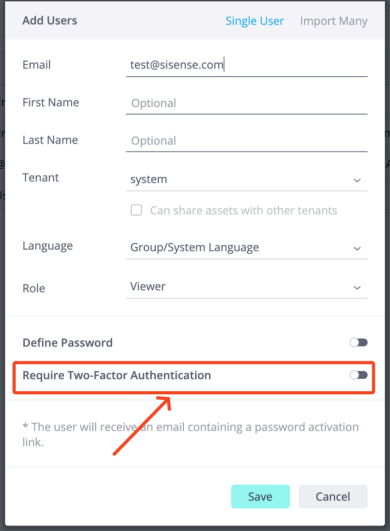
User-level configuration - Specifies whether 2FA should be enforced for a specific native user when 2FA is enabled at the deployment level.
-
In the user object returned by the API, this appears as a Boolean property:
isTwoFactorRequired: true | false. -
2FA is enforced for a user only when both:
-
The deployment-wide feature toggle is ON, and
-
isTwoFactorRequiredfor that user is set to true
-
-
Note:
When the deployment-wide 2FA toggle is OFF, per-user 2FA settings remain visible and editable but have no effect until the global toggle is turned ON.
Turning the 2FA feature toggle ON or OFF does not modify per-user configuration. It only affects whether the per-user setting is enforced at login.
SSO and AD users are always excluded from Sisense’s email 2FA policy. isTwoFactorRequired is always false and cannot be changed.
Administrators can turn off 2FA for specific native users, for example:
-
Synthetic / machine users
-
Integration or automation users
-
QA or test accounts
-
Other accounts where interactive logins are not required or are managed differently
This configuration is independent of the deployment-wide toggle and can be changed at any time.
The following table summarizes the interaction between the deployment-wide feature toggle and the per-user setting:
| Global 2FA Toggle | isTwoFactorRequired | Is 2FA Required at Login? |
|---|---|---|
| OFF | true or false | No (2FA is globally disabled) |
| ON | true | Yes, OTP is required after entering username/password |
| ON | false | No, regular username/password login only |
Turning the global toggle ON after it was OFF will re-activate 2FA for all native users with isTwoFactorRequired: true. Turning it OFF disables 2FA for everyone without changing any per-user settings.
Brute-Force Protection
2FA is integrated into the existing account lockout mechanism to retain the existing protection against brute-force account attacks. Each time the OTP or password is entered incorrectly, the Account Lockout Threshold counter is increased by 1.
The generated OTP expires after the allowed number of attempts is exceeded or when the user requests a new OTP.
Suggested Enablement Flow
To ensure that the authentication email and overall system are configured correctly, Sisense suggests testing 2FA for a small number of users and then enabling the System-Wide 2FA feature toggle. If it is working as expected, user-level 2FA configuration can then be applied to all required native users (see Managing 2FA for Multiple Users). Doing this will help ensure users don't experience breaking changes.
Disaster Recovery and Fallback Options
While Sisense does not provide a dedicated recovery flow with reset codes, if a user cannot receive a 2FA code (for example, email issues, incorrect email address, or locked-out users), the following recovery options are available:
-
Temporarily toggle off 2FA at the deployment level. Once the issue is resolved, re-enable the global 2FA toggle to restore protection.
-
An admin can disable 2FA for affected native users, individually or in bulk. This allows the user to log in using only a username and password.
On-Premises Deployments
Email-based 2FA is supported for Sisense on-prem deployments, with the following requirements:
-
Correct configuration of email (SMTP) is required (system must be able to send email).
-
Outbound connectivity to your email infrastructure must be available.
-
Local security, backup, and disaster recovery processes must include 2FA configuration and logs as relevant.
Multitenancy
2FA settings are applied to all users created in custom tenants (see Sisense Multitenancy), in the same manner that they are applied to system tenants. Please note that 2FA cannot be enabled or disabled for an individual tenant.
Enabling/Disabling 2FA for Users
2FA is enabled by default. An admin can enable or disable 2FA for individual users, for multiple users at once from the Users table, or via the REST API.
Viewing User 2FA Status
The 2FA column in the Users table (Admin > User Management > Users) shows whether 2FA is Enabled or Disabled for each user.
Managing 2FA for Multiple Users
To enable or disable 2FA for multiple users:
-
Navigate to Admin > User Management > Users.
-
Select the checkbox of each user you want to update. The bulk actions toolbar is displayed.
-
Click 2FA. The Manage Two-Factor Authentication (2FA) dialog opens and lists the selected users.
-
Select Enable 2FA for the selected users or Disable 2FA for the selected users, and click Apply.
A confirmation message is displayed and the Users table refreshes to show the updated 2FA status. Users who are already in the selected state remain unchanged.
Note the following:
-
Only admins and tenant admins can use the 2FA bulk action; it is hidden from all other users. Tenant admins can only update users in their own tenant.
-
The bulk action applies only to the users selected on the current page of the Users table (up to 20 users at a time). To update more users, repeat the action on each page.
-
Super users and default tenant admins cannot be selected for bulk actions and are not affected.
-
If 2FA is turned off at the deployment level, the dialog displays a warning. You can still apply the change and it is saved, but it does not take effect until Enforce Two-Factor Authentication is turned on.
IMPORTANT:
If your selection includes SSO or AD users and you choose to enable 2FA, the action reports success, but those users remain Disabled. Their 2FA is managed by the Identity Provider (IdP) and must be configured there.
Managing 2FA via the REST API
You can also enable or disable 2FA for multiple users via 1.0 PATCH users/bulk.
Sample payload:
[
  { "_id": "6947cd61fe7edd7d5ec1927a", "requireTwoFactorAuth": true },
  { "_id": "6947cd61fe7edd7d5ec1927b", "requireTwoFactorAuth": true },
  { "_id": "6947cd61fe7edd7d5ec1927c", "requireTwoFactorAuth": true },
  { "_id": "6947cd61fe7edd7d5ec1927d", "requireTwoFactorAuth": true },
  { "_id": "6947cd61fe7edd7d5ec1927e", "requireTwoFactorAuth": true }
  ....
]
Limitations
-
Two-Factor Authentication (2FA) does not currently support the ‘Session Inactivity' session management method. If your session management is set to 'Session Inactivity' rather than 'Cookie', the second authentication step will not be triggered. In this scenario, users will gain full access to the application immediately after the initial username and password login.