Sisense Intelligence Search
Last updated: October 5, 2026
| Tier | Deployment |
|
|
|
Sisense Intelligence Search lets you find existing widgets across all of your accessible dashboards using natural language. Instead of navigating dashboard by dashboard or recreating visualizations that already exist, you describe what you are looking for and Sisense returns a ranked list of relevant widgets — complete with the widget name, its parent dashboard, and its data source.
Search is powered by a hybrid engine that combines vector-based semantic search with lexical search (so results reflect intent along with keyword matches). Relevance thresholds, field weighting, and acronym and terminology matching are tuned so the best result surfaces first and off-topic matches are held back. Richer widget metadata (descriptive titles and axis labels) produces better match quality. No large language model (LLM) is involved, and no AI credits are consumed.
With Search you can:
-
Search by intent: Type a topic such as revenue, financial overview, or total admissions and get back matching widgets from across your dashboards, each listed with its widget name, parent dashboard, data source (model), and last modified date.
-
Browse and refine results: View results in a responsive spotlight-panel or grid layout, identify each widget’s visualization type at a glance from its chart placeholder, filter results by persona (user role), and page through large result sets.
-
Act on results: Preview a widget inline, jump to its source dashboard with the widget highlighted, find similar widgets, or add selected widgets to a new or existing dashboard. Adding widgets to dashboards is available to Designers only, per Role-Based Access Control (RBAC).
-
Embed it: Search is available as an iFrame-embeddable surface for embedded customers.
Enabling Search and Indexing Dashboards
Depending on your existing configuration, Search may or may not already be enabled. If it is not enabled, an Admin must enable it (after enabling Cloud-Linked Features).
-
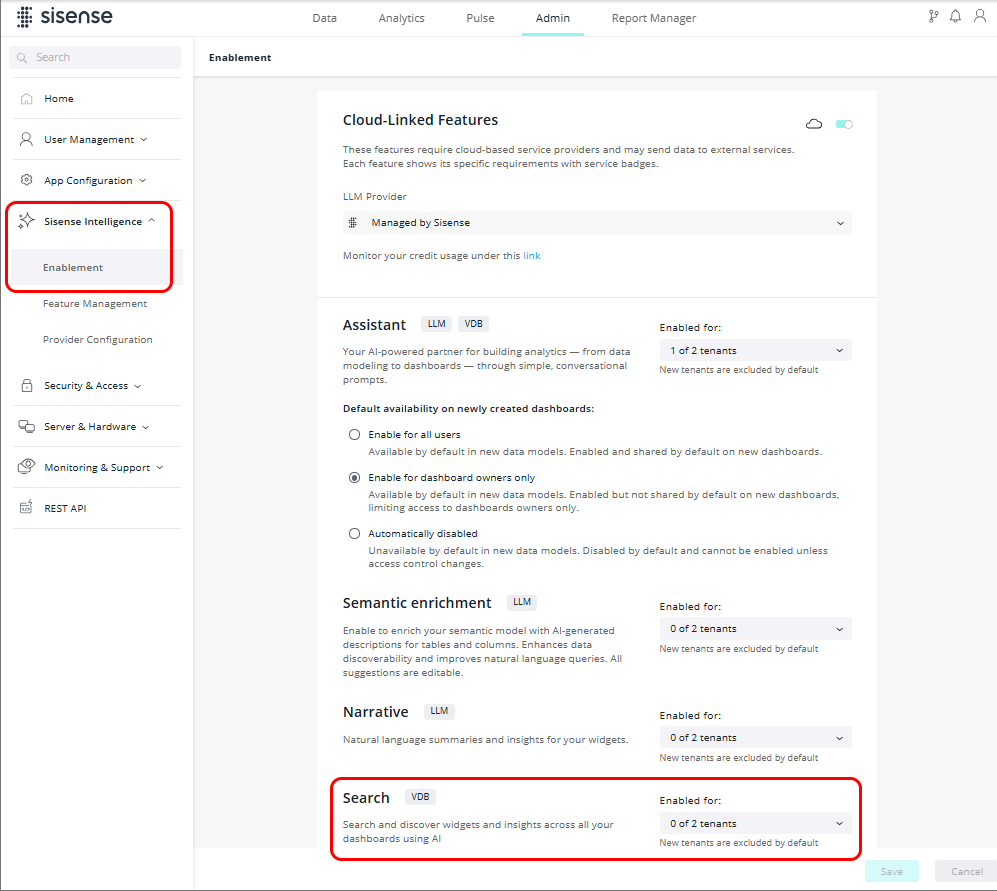
Enable Search at the tenant level in the Admin tab, under Sisense Intelligence > Enablement.
-
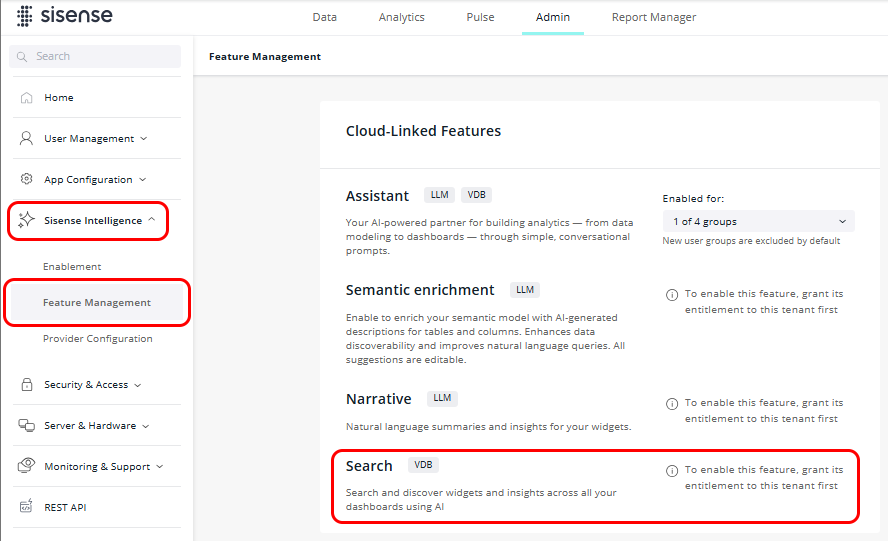
Enable Search at the user groups level in the Admin tab, under Sisense Intelligence > Feature Management.
When Search is enabled for the first time, a full re-index of your dashboards is triggered automatically. The first indexing may take a while; until it completes, Search displays an indexing status message instead of results. After that, dashboards and widgets are indexed automatically whenever they are created or updated, and a scheduled index refresh keeps the index current, including data-model changes. Indexing is resilient and resumable, so it completes reliably even in large deployments.
Using Sisense Intelligence Search
-
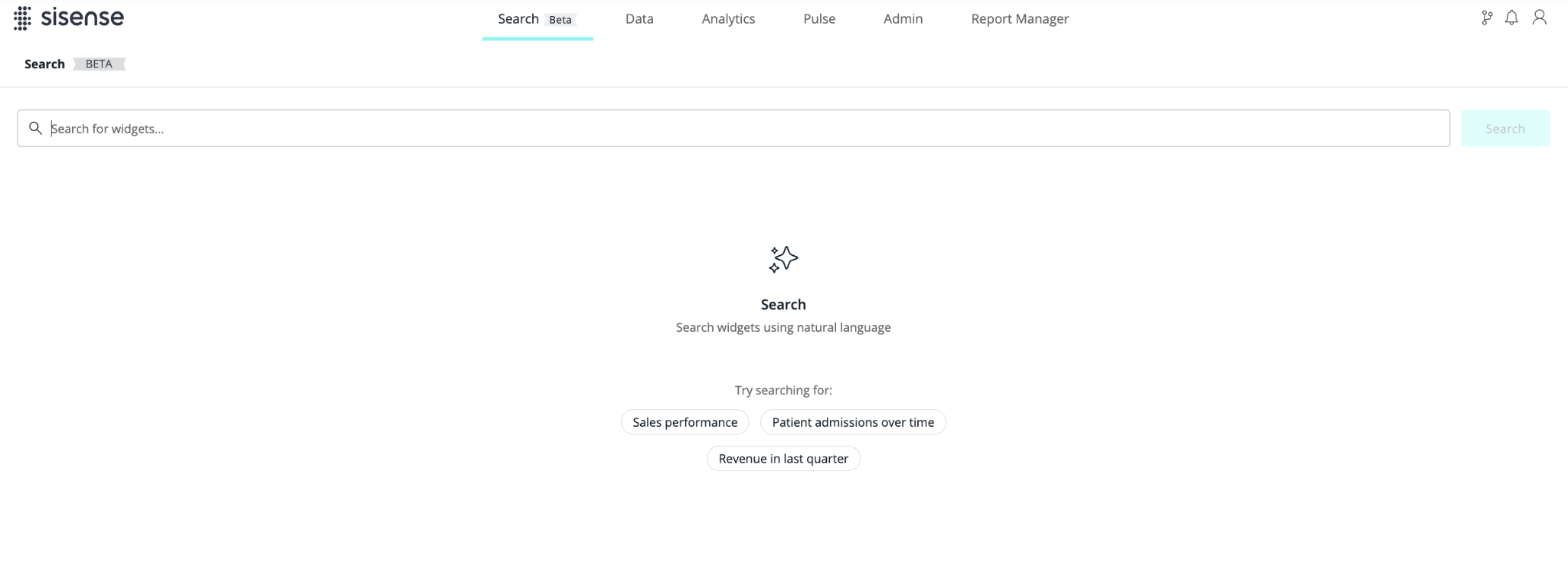
Select the Search tab from the navigation bar. The Search window presents a single search bar and a prompt to search widgets using natural language, with example queries such as “sales performance” or “patient admissions over time.”
-
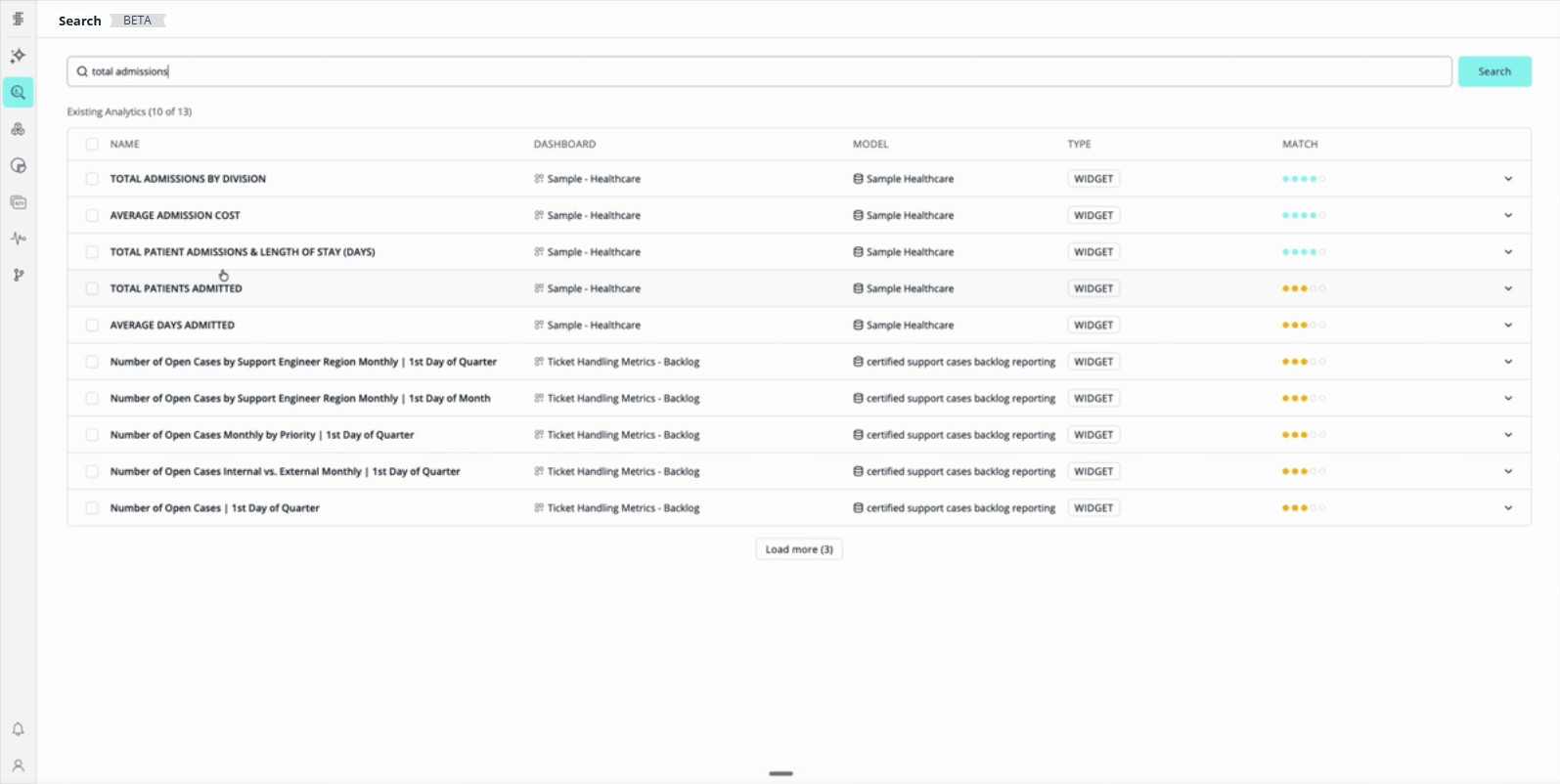
Enter a natural-language query. Type what you are looking for — for example, total admissions — and run the search. A Searching… indicator appears while results are retrieved.
-
Review the ranked results. Results appear under Existing Analytics, with a count of how many were returned (for example, 10 of 13). Results are displayed in a spotlight-panel or grid layout that adapts to your screen size and the number of results, and each result shows a chart placeholder that indicates its visualization type (for example, pivot table, bar chart, or line chart).
Each row shows:
-
Name — the widget title.
-
Dashboard — the parent dashboard the widget belongs to (for example, Sample – Healthcare).
-
Model — the underlying data source (for example, Sample Healthcare).
-
Last modified — when the widget was last changed.
-
Type — the result type (for example, Widget).
Note: The search shows only CSDK supported widgets. If a widget is not supported, a message is displayed and you can jump to the dashboard to see the widget there.
-
Match — a relevance indicator. Exact and strong matches are shown at the top and are visually distinguished from loosely related “similar” widgets lower in the list, so you can act on the strongest results first.
If no results are shown, Search displays a status message that explains why — for example, indexing is still in progress, no widgets match your query, or there is a connection error — along with suggested next steps.
-
-
To narrow the list, filter the results by persona (user role). To see results beyond the first page, select Load more.
-
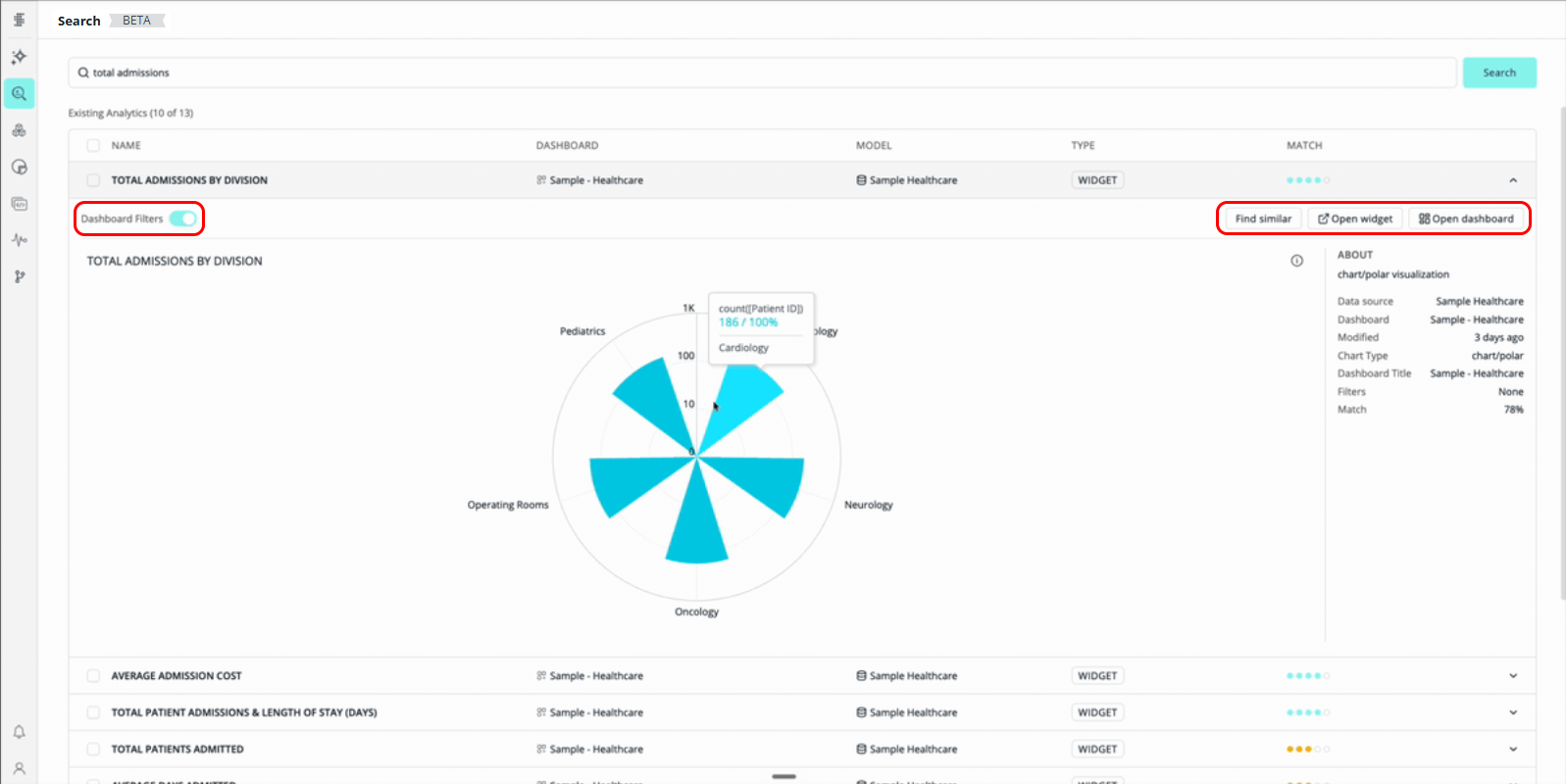
Expand a result to preview the widget inline without leaving Search. The expanded view renders the actual visualization (for example, a polar chart or a combination bar-and-line chart) and shows an About panel with the widget’s metadata: data source, parent dashboard, last-modified time, chart type, dashboard title, applied filters, and query chips. A Dashboard Filters toggle lets you control whether the parent dashboard’s filters are applied to the preview.
-
From an expanded result you can:
-
Find similar — show widgets related to the selected one.
-
Open widget — open the widget directly (only for Designers, not Viewers or Viewer Plus users).
-
Open dashboard — jump to the widget’s source dashboard, where the widget is highlighted in its native context.
-
Add selected widgets to a new or existing dashboard:
-
Select one or more results using the checkboxes. The header updates with a running count (for example, 3 selected).
-
Choose where to add the widgets:
-
New dashboard: Select Create dashboard to open the Create New Dashboard window, which confirms how many widgets will be added and pre-fills a dashboard name (for example, TOTAL ADMISSIONS BY DIVISION & 2 more). Adjust the name if needed, and select Create.
-
Existing dashboard: Select the existing dashboard you want to add the widgets to, and confirm.
-
-
Note:
Adding widgets to a new or existing dashboard from search results is available to Designers only, per RBAC. Viewers and Viewer Plus users do not see these actions.
Permissions
Search results are strictly scoped to your existing dashboard share permissions: you can only search, preview, and reuse widgets from dashboards you are explicitly authorized to view. Draft dashboards are indexed but are searchable only by their owner, so unpublished work stays private.
Access to actions follows Role-Based Access Control (RBAC) and per-dashboard share levels:
-
Designers can search, preview, find similar, open widgets and dashboards, and add selected widgets to new or existing dashboards.
-
Viewers can search, preview results, use Find similar, and open dashboards they have read-only access to. Edit and create actions are not available to Viewers. The same applies to Viewer Plus users — this search experience does not currently extend Viewer Plus's dashboard/widget composition permissions.
Technical Details
Sisense Intelligence Search consumes the AI Platform’s governed semantic search API (/api/v2/ai/semantic-search/*).
Current Limitations
The following functionality is planned for a future version, but is not yet available in the current version:
-
A Compose SDK hook/component.
-
Knowledge-graph integration for usage-based ranking, search across dashboards / data sources / tables, and analytics-tab integration.