Safe Data Model Renaming
Last updated: October 6, 2026
| Tier | Deployment |
|
|
|
You can rename a data model's display name from the Data page or the Model page without breaking existing dashboards, JAQL queries, custom plugins, or API integrations. The model keeps its original identity name, so everything that references the model keeps working, while you update the name people see to match your business terminology.
Overview
Previously, a data model's name was set when you created the model and could not be changed. Changing it meant cloning the model and then pointing every dashboard at the copy. Sisense now separates the name people see from the name the system uses, so you can rename a model in place.
Display Name and Identity Name
Every data model has two names:
-
Display name - The name users see and search for across Sisense. You can edit it at any time. A new model's display name starts out the same as its identity name.
-
Identity name - The name the model was created with, together with its OID. It serves as a stable technical reference, and you cannot change it after the model is created.
The Sisense user interface shows and searches data models by display name. APIs, JAQL routing, permission checks, and Compose SDK query bindings use only the identity name or OID, so renaming a model does not break anything that references it.
Where the New Name Appears
A rename takes effect in two stages:
| Location | When the New Name Appears |
|---|---|
| Data page and Model page | Immediately after you save the new name, for the active session only. |
| Analytics: data source pickers, widget pickers, the dashboard toolbar, the data browser, and dashboard headers and labels | After the next page load. |
| Lists of data models elsewhere in Sisense, such as the Analytics home page | After the next page load. |
| Compose SDK UI components | After the next page load. |
| The assistant | After the next page load. |
For details, see Applying the New Name Across Sisense, later in this topic.
Prerequisites
-
Sisense 2026.4.0 or later.
-
Edit access to the data model. Only users with edit access can rename a model's display name. For more information, see Managing Access to Data Models.
Renaming a Data Model
You can rename a data model from its menu on the Data page or from the menu on the Model page. Both menus open the same window. You can rename a model even if it has never been built.
To rename a data model:
-
On the Data page, click the menu for the relevant data model, or open the model and click its menu.
-
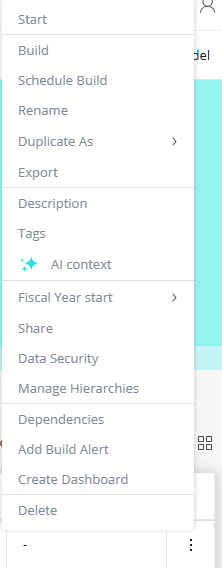
Select Rename (directly above "Duplicate As"). The Rename data model window opens, with the cursor at the end of the current name.
-
In the Display name field, enter the new name. You can start typing right away, for example, to add
_v2to the end of the current name. The identity name (a.k.a. "Identifier name / title") is read-only; click the copy icon beside it to copy its value.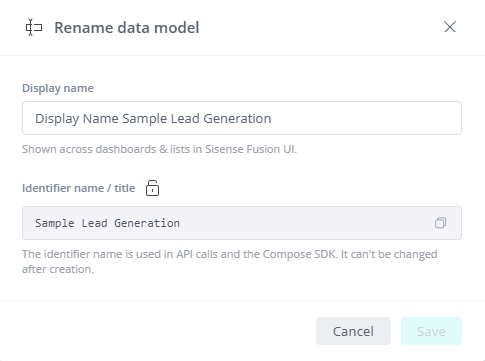
-
Click Save. The new name appears on the Data page and the Model page right away.
Note:
If the name breaks one of the rules below, an error appears in the window and Sisense does not save the name. Fix the name and click Save again.
Display Name Rules
A display name must meet the following rules, which are the same rules that apply to a data model's name when you create it:
| Rule | Details |
|---|---|
| Length | Up to 60 characters. |
| Characters | Cannot contain any of these characters: # % ? * < > / \ : " | |
| Ending | Cannot end with a period (.). |
| Spaces | Leading and trailing spaces are removed when you save. |
| Empty names | The display name cannot be empty. |
| Uniqueness | No other data model can already use the same display name. |
Applying the New Name Across Sisense
After you rename a data model, build the model or publish its semantics to show the new name outside the Data page and the Model page. Saving a new display name makes Publish Semantics available, so you can apply the name without a full build.
To apply a new display name without a build:
-
Open the data model.
-
Click Publish Semantics. Analytics, Compose SDK components, and the assistant show the new name.
For more information, see Publishing Semantics Without Build.
Note:
Publish Semantics is not available while a build is running or when the model has pending changes that require a build. In those cases, the next build applies the new name.
Viewing Display and Identity Names
Because a model's display name can differ from its identity name, Sisense shows both where you need them.
On the Data page, both the Tile and List views show, sort, and search data models by display name. For more information about the views, see Viewing Data Models.
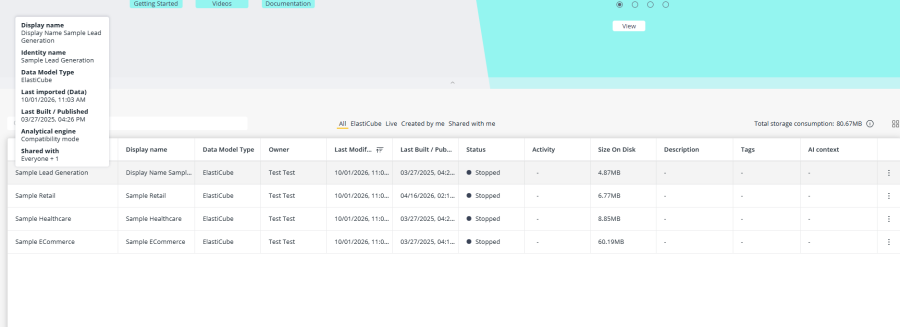
To view both the display name and the identity name of a data model, hover over its name. This works on the Data page and in the data source selection window when you create a dashboard or change an asset's data source.
Using the Identity Name in APIs
APIs, JAQL queries, and permission checks refer to a data model by its identity name, not its display name. Renaming a model does not change these references, so existing code and integrations keep working as is.
When you write new API calls, use the identity name. You can copy it from the Rename data model window.
In Compose SDK applications, UI components such as the filter editor, the data source selector in the data browser, and the AI chatbot show the display name. The data source you pass in code is still the identity name.
Expected Behavior and Limitations
-
You can rename only the data model itself. Perspectives keep their own names and cannot be renamed this way. When a perspective is open on the Model page, Rename still renames the data model. For more information, see Perspectives.
-
Table and column display names are separate and work as before.
-
You can rename only one data model at a time. Bulk renaming is not supported.
-
Dashboard titles that include the old model name are not updated. Rename those dashboards manually if needed.
-
In the assistant, data models that have never been built show their identity name instead of their display name.
-
In the assistant, chart subtitles show the identity name of the data source.
-
When you duplicate or import a data model (see Duplicating Data Models and Exporting and Importing Data Models):
-
If you give the model a new name, the display name is updated to match the new identity name.
-
If a prefix is added to the model name (for example, when duplicating), the same prefix is added to the display name.
-