Filter Widget (Beta)
Last updated: October 20, 2026
| Tier | Deployment |
|
|
|
The filter widget places interactive filters directly on a dashboard, so viewers can filter the dashboard without opening the filters panel. Dashboard designers configure each filter in the widget editor without writing code, and can place it anywhere in the dashboard layout.
Overview
A filter widget is a filter control bound to a single field (dimension). When a user selects values in the filter, the filter widget creates or updates the matching dashboard filter, and the dashboard updates accordingly.
Like a regular widget, a filter widget can go anywhere in the dashboard layout. Filter widgets work in all Sisense embedded deployments, including Compose SDK.
Note:
Filter widgets are not supported in the Sisense native mobile application.
Filter widgets are especially useful in OEM and embedded analytics, where the filters panel is often hidden or does not match the host application's design.
Filter widgets also:
-
Keep their selections when the page refreshes.
-
Respect the dashboard's Update on every change setting.
-
Follow the dashboard's Look and Feel theme.
-
Use the same query as a filter in the filters panel, so they add no extra query load.
Filter Types
Each filter widget uses one of the following filter types:
| Filter Type | Field Types | Description |
|---|---|---|
| List | All (text, number, date) | A searchable drop-down list of the field's members. Supports single or multiple selection, as configured by the designer. |
| Condition | All (text, number, date) | Filters by a condition. For text and numeric fields, use a comparison operator, such as equals, greater than, or between. For date fields, use a relative period, such as the last 3 months, or a comparison with a date, such as before 09/17/2026. |
| Calendar | Date | A calendar for selecting one or more specific dates. Supports single or multiple selection, as configured by the designer. |
| Range | Date | From and To dates that filter to the days between them. You can leave either end open, and you can select dates in the calendar or type them. |
Sisense L2026.4 added the Calendar and Range types, and date support for the Condition type.
Filter Widgets and the Filters Panel
The dashboard filter that a filter widget creates also appears in the filters panel, as a read-only tile labeled "Linked to filter widget." The filter stays active, but you can change its values only from the filter widget on the dashboard. Hover over the info icon on the tile to see why you can't edit it.
If a dashboard filter already exists on a field, you cannot use that field for a filter widget. For date fields, you can create a separate filter for each date level.
Note:
Changing the date level of an existing dashboard filter to the level used in a filter widget might link multiple filters to the same filter widget, or vice versa. This issue will be addressed in a future version.
A filter widget's filter is a regular dashboard filter, so it can take part in AND/OR relationships, which you manage in the Filter Relationship Editor as usual.
Prerequisites
-
The Filter Widget (Beta) feature must be enabled in Feature Management. It is enabled by default. See Enabling the Filter Widget, later in this topic.
-
To add, edit, or delete filter widgets, you must be the dashboard owner, a co-owner, or a shared user with design permission on the dashboard. See Who Can Change Filter Widgets, later in this topic.
Enabling the Filter Widget
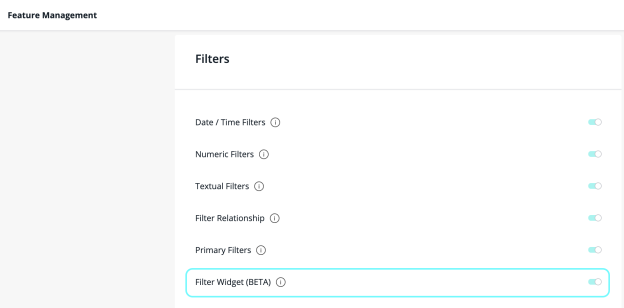
The filter widget is enabled by default. An administrator can turn it on or off on the Feature Management page.
To enable or disable the filter widget:
-
Click Admin in the top menu.
-
In the navigation pane on the left, under App Configuration, click Feature Management.
-
In the Filters section, turn Filter Widget (Beta) on or off.
-
Click Save.
When the feature is off, users cannot add new filter widgets. Existing filter widgets stay on their dashboards, but each one displays an unregistered widget message, and users cannot edit it.
For more information, see Managing Sisense Features.
Adding a Filter Widget to a Dashboard
To add a filter widget:
-
Open the dashboard in edit mode.
-
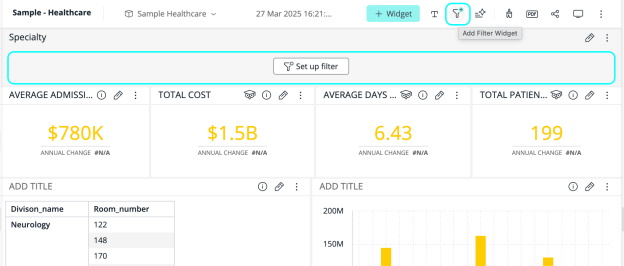
In the dashboard toolbar, click the Add Filter Widget icon. An empty filter widget with a Set up filter button appears on the dashboard.
-
Click Set up filter. The widget editor opens.
-
In the left panel, select the field to filter by. A filter widget filters by one field, and fields that other filters already use are unavailable.
-
On the Design tab, select a Type: List, Condition, Calendar, or Range. The available types depend on the field's data type. See Filter Types, earlier in this topic.
-
Turn Multi-select on to let users select more than one value, or off to allow a single value. It is on by default.
-
(Optional) Configure the other settings on the Filters and Design tabs. See Filter Widget Settings, later in this topic.
-
Click Apply. The filter widget appears on the dashboard, and its linked filter appears in the filters panel.
-
Drag the filter widget to where you want it in the layout. See Customizing the Dashboard Layout.
-
Publish the dashboard to share the change with other users.
To edit a filter widget later, click the edit icon on the widget. Changes you make in the widget editor take effect only when you click Apply. Click Cancel to discard them.
Filter Widget Settings
Configure these settings in the widget editor:
| Setting | Description |
|---|---|
| Type | How the filter is presented: List, Condition, Calendar, or Range. |
| Multi-select | Whether users can select more than one value. Applies to the List and Calendar types. On by default. |
| Dashboard Filters |
Which dashboard filters, including other filter widgets, limit the values that this filter widget offers. By default, no dashboard filters affect it. Turn on the filters that should narrow its values. Note: Limiting a filter widget's values by other filters can slow dashboard rendering after each filter update, because Sisense must run additional queries to find the relevant items for each affected filter on the dashboard. |
| Dimension Filters |
Pre-filter the field used in the filter widget to limit the values users can select. Dimension filters work like background filters for the widget. You add a dimension filter to the field in the left panel. |
| Filter Style | The appearance of the filter control: size, corner radius, alignment, and the border, text, and background colors. |
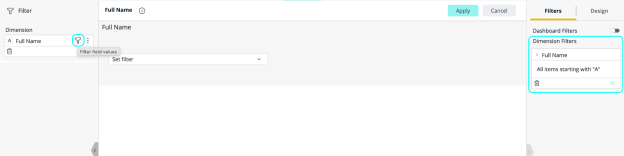
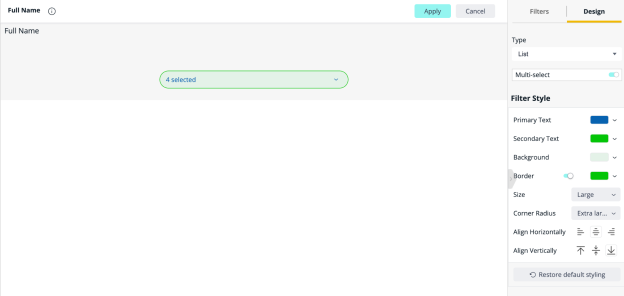
The filter widget supports the dashboard's Look and Feel theme and the widget design settings. See Setting Widget Style.
Date Levels
For a date and time field, select the date level, such as years or months, in the filter control on the widget itself. The date level control in the editor's left panel is not available for filter widgets. A date level that another filter already uses on the same field is hidden.
Who Can Change Filter Widgets
What a user can do with a filter widget depends on their access to the dashboard:
| User | Permissions |
|---|---|
| Dashboard owners and co-owners | Add, edit, and delete filter widgets. Changes reach all users after the dashboard is republished. |
| Shared users with design permission | Add, edit, and delete filter widgets. Changes affect only the user's copy of the dashboard. |
| Shared users with view permission | Change filter selections only. |
For more information, see Sharing Dashboards.
Filtering with a Filter Widget
How you select values depends on the filter widget's type.
Using a List Filter
To filter with a list filter:
-
Click the filter widget. A drop-down list of the field's values opens.
-
(Optional) Type in the search box to find a value.
-
Select one value, or several if the widget allows multiple selection.
-
Click Select all to select every value, including values not yet loaded in the list. The filter widget then shows Include all.
-
Click Clear all to clear the selection.
-
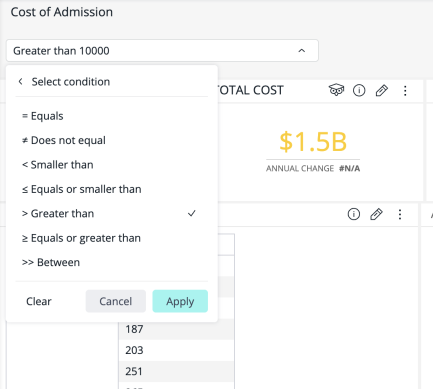
Using a Text or Numeric Condition Filter
To filter with a text or numeric condition filter:
-
Click the filter widget.
-
Select a comparison operator, such as Equals, Greater than, or Between.
-
Enter the value or values to compare against.
Using a Calendar Filter
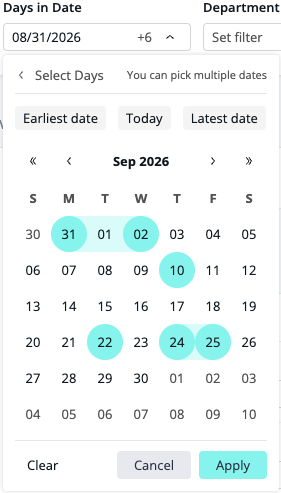
The Calendar type is available for date and time fields. It shows a calendar for selecting specific dates, as an alternative to a list of dates.
To filter with a calendar filter:
-
Click the filter widget. The calendar opens.
-
Select a date in one of these ways:
-
Click a day in the calendar.
-
Type a date in MM/DD/YYYY format.
-
Click Earliest date, Today, or Latest date to jump to the first date in the data, today's date, or the last date in the data.
You can also select dates outside the range that the data covers.
-
-
If the widget allows multiple selection, select more dates. Consecutive dates appear as a continuous range in the calendar.
-
Click Apply.
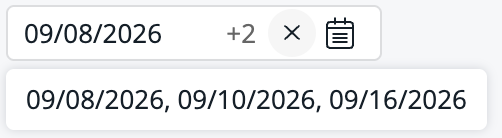
When several dates are selected, the filter widget shows the first date and an overflow counter, such as +6. Hover over the counter to see every selected date.
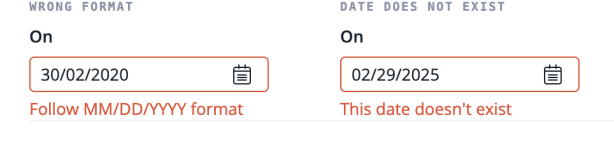
If you type an invalid date, the filter is not applied, and one of these errors appears under the field:
-
Follow MM/DD/YYYY format: The entry is not in MM/DD/YYYY format.
-
This date doesn't exist: The date is in the right format but does not exist, such as February 29 in a non-leap year.
Note:
Even when consecutive dates appear as a range, the calendar filter sends them as a list of dates, so query performance is the same as for a list filter.
Using a Date Condition Filter
The Condition type on a date and time field filters by a relative period, such as the last three months, or by comparison with a specific date. A new date condition filter starts as Last 1 Year.
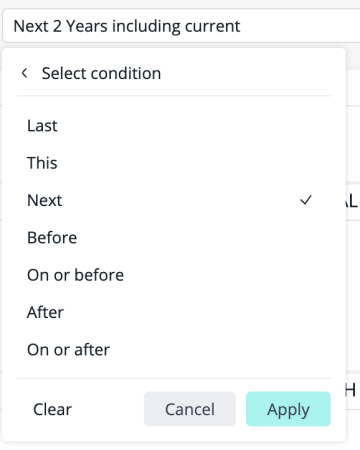
Date condition filters use these operators:
| Operator | Filters To |
|---|---|
| Last | A number of past periods, such as the last 3 days. |
| This | The current period, such as this month. |
| Next | A number of future periods, such as the next 2 years. |
| Before | Dates before a specific date. |
| On or before | Dates up to and including a specific date. |
| After | Dates after a specific date. |
| On or after | Dates from a specific date onward. |
To filter by a relative period:
-
Click the filter widget.
-
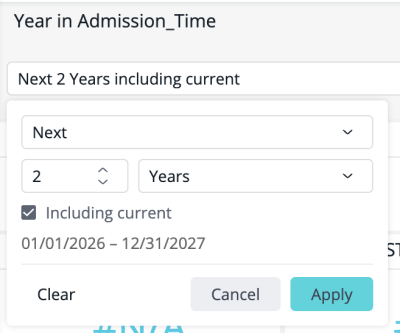
Select Last, This, or Next.
-
Select the period: Year, Quarter, Month, Week, or Day.
-
For Last or Next, set the number of periods.
-
(Optional) For Last or Next, select Including current to include the current period. The panel shows the date range that the condition resolves to.
-
Click Apply. The filter widget shows the condition, such as Last 3 Days. Hover over it to see the resolved date range.
Tip:
To filter to today, select This and then Day.
To filter by comparison with a date:
-
Click the filter widget.
-
Select Before, On or before, After, or On or after.
-
Type a date in MM/DD/YYYY format, or select a date in the calendar. To jump to and select a date, click Earliest date, Today, or Latest date. You can select dates outside the range that the data covers.
-
Click Apply.
A date condition filter uses a single condition. If you type an invalid date, the filter is not applied, and the panel shows "Follow MM/DD/YYYY format" or "This date doesn't exist."
Note:
A date condition filter creates the same kind of filter as a dashboard date filter (a period or a date range), not a list of dates.
Using a Range Filter
The Range type is available for date and time fields. It filters to the days between a start date and an end date.
To filter with a range filter:
-
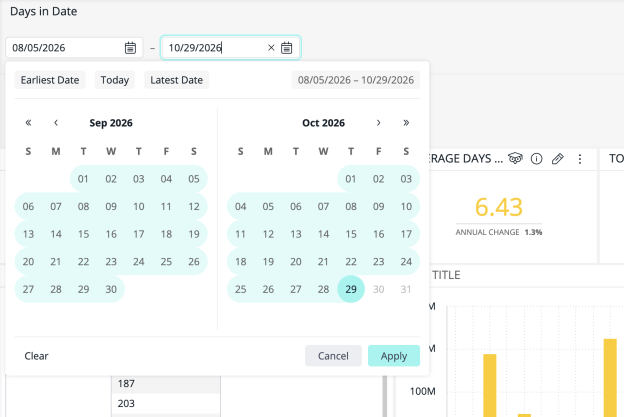
Click the filter widget. The From and To fields open above a calendar that shows two consecutive months.
-
Set the start date: type it in the From field in MM/DD/YYYY format, or click a day in the calendar. The To field becomes active.
-
Set the end date the same way. To jump to and select a date, click Earliest Date, Today, or Latest Date. You can select days outside the range that the data covers; they appear dimmed.
-
Click Apply.
The filter widget shows the range as From – To.
To change one end of the range, click its field and then select a new date.
When you select dates in the calendar, the earlier date always becomes the From date. If you select a To date that is before the From date, the two dates swap.
You can leave one field empty:
-
From only: Dates from the start date onward.
-
To only: Dates up to the end date.
-
Both empty: No filter is applied.
If you type an invalid date, the field gets a red border, and one of these messages appears under it when the panel closes:
| Message | Cause |
|---|---|
| Follow MM/DD/YYYY format | The entry is not in MM/DD/YYYY format. |
| This date doesn't exist | The date does not exist, such as February 29 in a non-leap year. |
| Must be earlier than end date | The typed From date is after the To date. |
| Must be later than start date | The typed To date is before the From date. |
Limitations
-
A filter widget filters by one field (dimension).
-
Primary filters are not supported with filter widgets.
-
You cannot edit a filter widget's linked filter from the filters panel. Change its values on the filter widget instead.
-
When a user clicks a chart element to create a filter, the new filter is added to the filters panel, not as a filter widget.
-
Changing the date level of an existing dashboard filter to the level used in a filter widget might link multiple filters to the same filter widget, or vice versa. This issue will be addressed in a future version.
-
In a List filter with an active search, "Select all" selects all available members, not only the search matches.
-
In Sisense (outside embedded deployments), you cannot currently hide the filters panel.
-
You cannot duplicate a filter widget or copy it to another dashboard by dragging it.
-
The Embed Code and Change datasource menu options are not available for filter widgets.
-
When Widget Style customization is enabled, the filter widget keeps a fixed height of 68 px, which can clip its content, such as the drop-down list. To work around this, increase the widget's height manually after you enable the customization.