Folder and Asset Organization (Beta)
Last updated: October 20, 2026
| Tier | Deployment |
|
|
|
Folder and Asset Organization lets you organize dashboards in a hierarchy of folders and subfolders, and then share, own, and move them at the folder level. Share a folder once, and every published dashboard in it, including dashboards added later, is shared with the same users and groups.
Overview
Without this feature, you share and transfer dashboards one at a time, and you must re-share each new dashboard that you add to a folder. With Folder and Asset Organization enabled, access is based on structure: a dashboard inherits the shares of every folder above it.
Folder and Asset Organization adds the following capabilities:
-
Hierarchical folder organization - Works with your existing folder hierarchy. Create folders and subfolders to organize dashboards and other assets.
-
Bulk folder sharing - Share a folder, and all the published dashboards in it, with specific users or groups in one action. Unpublished (draft) dashboards stay accessible only to their owner until they are published.
-
Folder collaboration - Grant Can Design permission on a folder so that authorized team members can create dashboards in the shared folder or move dashboards into it.
-
Multi-user ownership - Starting in 2026.4.0, when Dashboard Co-Authoring is enabled, you can make a user a co-owner of a folder.
How Inherited Access Works
When you share a folder, Sisense applies the share to the folder's contents:
-
Every published dashboard in the folder and in all of its subfolders, at any depth, is shared with the folder's users and groups.
-
Dashboards that you add to the folder later inherit the same shares.
-
When you remove a share, or move or delete a dashboard or folder, Sisense recalculates access for the affected folders and dashboards. Users who also have access through another share keep that access.
-
Only the folder owner, or a co-owner when Dashboard Co-Authoring is enabled, can share a folder.
-
Owning a folder does not make you the owner of the dashboards that other users create in it:
-
Without Dashboard Co-Authoring, the folder owner gets Can Design permission on other users' published dashboards in the folder.
-
With Dashboard Co-Authoring, the folder owner gets Co-Owner permission.
-
Permission Levels
When you share a folder, you select one of the following permissions for each user or group:
| Permission | Description |
|---|---|
| Can View | The user can view and filter the dashboards in the folder. |
| Can Design | The user can create dashboards in the folder, and move and import dashboards into it. The user also gets Can Design permission on the dashboards in the folder. |
| Make Co-Owner | Available starting in 2026.4.0, when Dashboard Co-Authoring is enabled. The user becomes a co-owner of the folder and of all your dashboards in it and its subfolders. See Making a User a Folder Co-Owner. |
A direct share on a subfolder or dashboard can give a user more access than the parent folder gives, but not less. For example, if a folder is shared with a user as Can Design, you cannot select Can View for that user on a subfolder or on a dashboard in the folder.
Prerequisites
-
An administrator must enable Folder and Asset Organization (Beta) in Feature Management. See Enabling Folder and Asset Organization.
-
To share a folder's dashboards, the dashboards must be published.
-
Users who receive access to a dashboard also need access to the dashboard's data sources. Sisense checks this when you share or move a folder and notifies you if any users or groups can't access a data source.
-
To make users folder co-owners (2026.4.0 and later), Dashboard Co-Authoring must be enabled in Feature Management.
Enabling Folder and Asset Organization
Folder and Asset Organization is disabled by default.
To enable Folder and Asset Organization:
-
In the top menu, click Admin.
-
Click Feature Management.
-
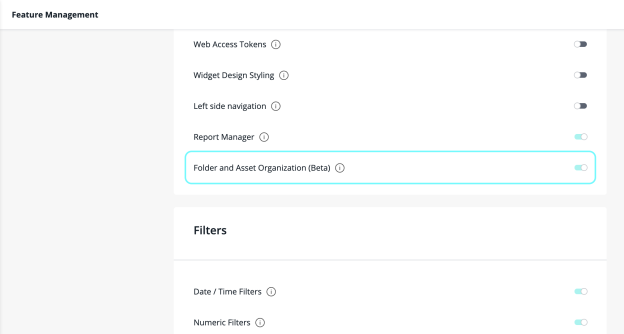
In the Management section, turn on Folder and Asset Organization (Beta). The setting appears at the bottom of the section, below Report Manager.
-
Click Save.
When the feature is enabled, folder menus in the Navigation Pane include Share and Change Owner.
For more information, see Managing Sisense Features.
Creating Folders
Creating folders and subfolders in the Navigation Pane works the same way as it did before you enabled the feature. See Organizing Dashboards.
To create a folder:
-
In the Navigation Pane, click + and select New Folder. The new folder is added to the dashboards list.
-
Hover over the new folder, click
 > Rename, and enter a name for the folder.
 -
To create a subfolder, hover over a folder, click
> New Folder, and repeat step 2.
Sharing a Folder
Share a folder to give users or groups access to all the published dashboards in it and in its subfolders.
To share a folder:
-
In the Navigation Pane, hover over the folder and click
> Share. The Share Folder dialog opens.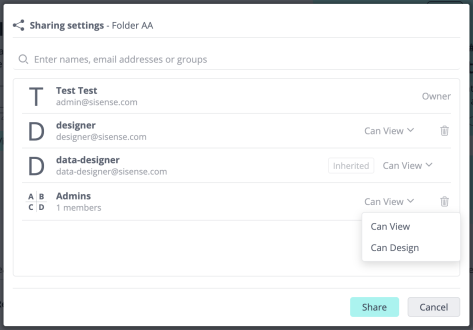
-
Enter the users or groups to share the folder with. To share the folder with all users, select Everyone.
-
In the drop-down next to each user or group, select the permission. See Permission Levels.
-
Click Save. If some dashboards in the folder aren't published, or some recipients can't access a data source, Sisense displays a notification. See Unpublished Dashboards and Data Source Access.
Note:
Sisense saves changes in the Share Folder dialog, including removed users and groups, only when you click Save. To discard your changes, close the dialog without saving.
Unpublished Dashboards
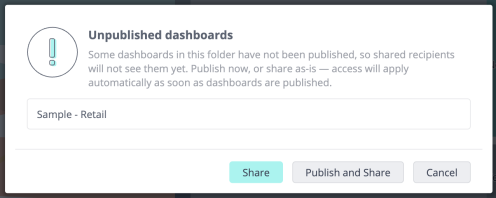
Folder sharing applies only to published dashboards, so drafts stay accessible only to their owner. When you share or move a folder that contains your unpublished dashboards, Sisense displays a notification that lists them. The folder's users can't see these dashboards until you publish them.
The notification lists only the dashboards you own. To publish them, click Publish and Share in the notification.
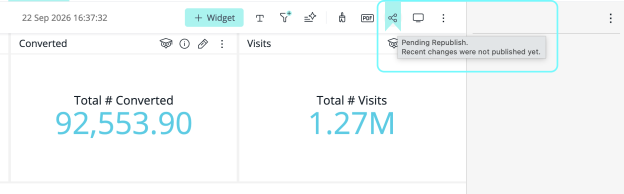
Starting in 2026.4.0, a dashboard's Share icon shows the pending changes indicator when the dashboard is shared but not published, or when it has unpublished changes. This also applies to dashboards shared only through a folder. Publish the dashboard so that the folder's users can see it, including your latest changes.
Data Source Access
Sisense checks every published dashboard in the folder and its subfolders. If any of the users or groups you share with cannot access a dashboard's data sources, Sisense displays the Data Source Access Rights dialog before it saves the share.
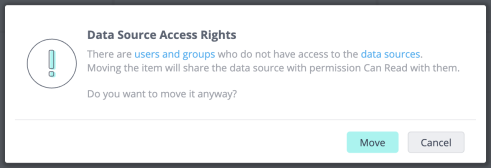
For more information, see Managing Access to Data Models.
Inherited Shares in the Dashboard Share Dialog
When you open the Share dialog of a dashboard in a shared folder, the dialog indicates which shares are inherited from the folder:
-
For users with the Viewer role, you can't change the permission of an inherited share.
-
If a user's inherited permission is higher than their direct share on the dashboard, the dialog shows the inherited permission. For example, if a dashboard is shared with a user as Can View and its folder is shared with the same user as Co-Owner, the dialog shows the user as Co-Owner (2026.4.0 and later).
Note:
If a user has both a direct share and an inherited share from a folder, the inherited share appears only after you remove the direct share, save, and reopen the dialog.
Making a User a Folder Co-Owner
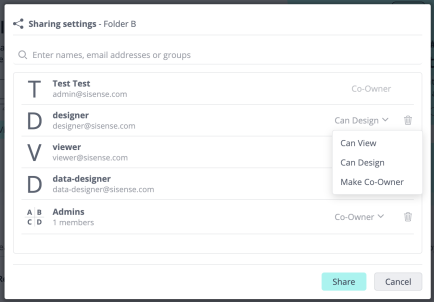
Starting in 2026.4.0, when Dashboard Co-Authoring is enabled, you can make a user a co-owner of a folder. The co-owner also becomes a co-owner of all your dashboards in the folder and its subfolders. For more information about co-owned dashboards, see Assigning Co-Ownership of a Dashboard.
To make a user a folder co-owner:
-
In the Navigation Pane, hover over the folder and click
> Share. -
If the user is not already in the list, add them.
-
In the permission drop-down next to the user, select Make Co-Owner.
-
Click Save.
Note:
You can't make a user with the Viewer Plus role a co-owner. The same rules apply as for dashboard co-ownership:
-
You can make a group a co-owner, except the Everyone group.
-
When you make a group a co-owner, at least one individual user must also be a co-owner.
Moving Dashboards and Folders
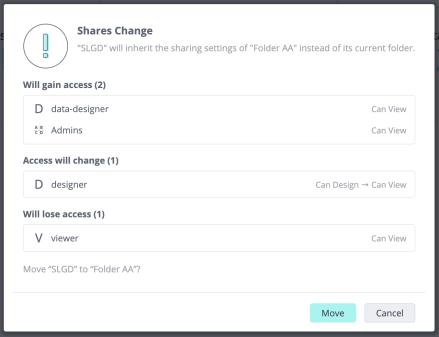
Drag a dashboard or folder to another folder in the Navigation Pane. Because access is inherited, moving an item can change who can see it. Before Sisense completes the move, it displays a notification that shows:
-
Which users and groups will gain or lose access through the destination folder, and the permission each will get. For example, when you move your dashboard into a folder that another user owns, the folder owner gets Can Design access to the dashboard but doesn't become its owner.
-
Whether the dashboard is unpublished, in which case other users cannot see it until you publish it.
-
Whether any users of the destination folder are missing access to the data sources of the moved dashboards. If you don't have permission to change data source access, the notification is for information only; ask a data administrator to grant the access.
Note:
To move a dashboard, you must be its owner or co-owner and have Can Design permission on the destination folder (folder owners have this permission by default). To move a folder, you must have Can Design permission on it and on the destination folder.
Changing the Folder Owner
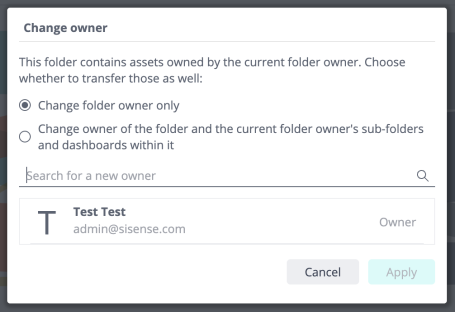
A folder owner can transfer the folder to another user. When you change the owner, you can also transfer ownership of the assets in the folder that you own. Assets owned by other users aren't affected.
You can change the owner from the folder's menu in the Navigation Pane ( > Change Owner), or from the Share Folder dialog.
To change the folder owner from the folder menu:
-
In the Navigation Pane, hover over the folder and click
> Change Owner. -
Select one of the following:
-
Change folder owner only - Changes ownership of the folder only.
-
Change owner of the folder and the current folder owner's sub-folders and dashboards within it - Changes ownership of the folder and of the assets in it that you own.
-
-
Search for and select the new owner.
-
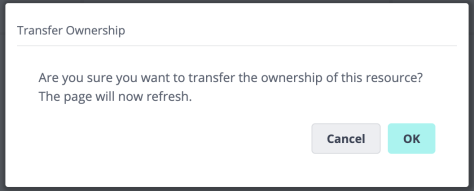
Confirm your choice.
To change the folder owner from the Share Folder dialog:
-
Open the Share Folder dialog.
-
Select the new owner, and click Apply.
-
Confirm your choice in the confirmation dialog.
Note:
When you change the folder owner from the Share Folder dialog, Sisense automatically transfers ownership of the assets in the folder that you own. When Dashboard Co-Authoring is enabled and the new owner was a co-owner of the folder, the new owner stays a co-owner of the dashboards in the folder (2026.4.0 and later).
Deleting a Folder
Sisense asks you to confirm before it deletes a folder.
Important:
Deleting a folder permanently deletes its content. You can't undo this action.
What Sisense deletes depends on whether Dashboard Co-Authoring is enabled.
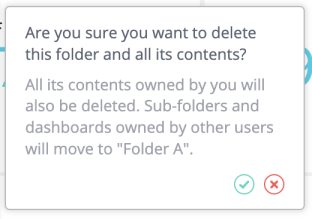
Without Dashboard Co-Authoring:
-
Only the folder owner can delete the folder.
-
Sisense deletes the folder and all the subfolders and dashboards in it that you own, including their widgets.
-
Sisense doesn't delete subfolders and dashboards owned by other users. It moves them to the next remaining parent folder, or to the root of the dashboards list.
With Dashboard Co-Authoring:
-
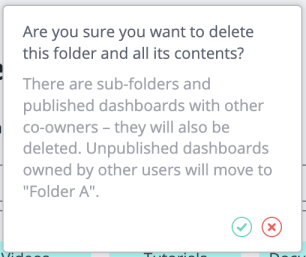
The folder owner is a co-owner of everything in the folder, so Sisense deletes the folder and all of its subfolders and published dashboards, including those that other users co-own.
-
Sisense doesn't delete unpublished dashboards owned by other users. It moves them to the next remaining parent folder, or to the root of the dashboards list.
Report Subscriptions for Inherited Shares
Users who get access to a dashboard through a folder can receive email reports for that dashboard, like users with a direct share:
-
The dashboard owner can turn email reports on or off for users with inherited access.
-
If the owner allows it, users with inherited access can change their own subscription settings.
-
Dashboards shared through a folder appear in the dashboard list of the Report Manager.
For more information, see Managing Subscriptions in Sharing Dashboards.
Managing Folders with the REST API
Administrators can use the REST API to manage other users' folders and their shares by adding the adminAccess=true query parameter to the request. For example, an administrator can transfer a user's folders and dashboards to another user before deleting that user.
With adminAccess=true, an administrator can:
-
Get folders.
-
Create a folder in another user's folder.
-
Update folders and dashboards, including changing the owner.
-
View and update the shares of a folder.
-
Delete folders.
Important:
When you delete a folder with adminAccess=true, Sisense permanently deletes the entire folder subtree: all subfolders and every dashboard in them, including their widgets, regardless of who owns them.
Limitations
-
Folder sharing applies only to published dashboards.
-
Without Dashboard Co-Authoring, only the folder owner can delete a folder.
-
Administrators can access other users' folders only through the REST API.
-
Folder co-ownership requires Dashboard Co-Authoring (2026.4.0 and later), and you cannot make a Viewer Plus user a co-owner.