Viewing a Widget in Full Screen Mode
Last updated: June 22, 2026
| Tier | Deployment |
|
|
|
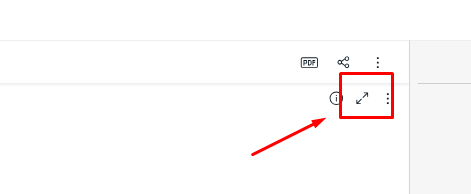
When viewing a dashboard, you can expand an individual widget to full screen for easier viewing via the full screen icon. This is useful for dense visualizations such as large pivot tables or charts with many data points.
Availability
The full-screen icon appears in the widget header and is available to viewers only. It appears for all widget types.
Note:
Dashboard designers and dashboard owners do not see the icon. Instead, the widget header displays the edit icon  , which opens the widget for editing.
To View a Widget in Full Screen
-
Open the dashboard.
-
Hover over the widget you want to view.
-
In the widget header, click the full-screen icon
 . The widget expands to fill the screen.
To return to the dashboard, click Cancel to close the full-screen view.
Notes:
-
In full screen mode, viewers can see the widget filters that are applied but cannot edit them.
-
The full-screen icon is not displayed in the following cases:
-
Designer or owner view: Users with editing rights see the edit (pencil) icon in place of the full-screen icon.
-
Embedded widgets: When a single widget is embedded, the widget header is not displayed and the full-screen icon is not available. See Setting Widget Style and Embedding Dashboards and Widgets.
-