Sharing Widget Data
Last updated: June 11, 2026
| Tier | Deployment |
|
|
|
Download widgets to share them with others, outside of the Sisense environment. For example, you can attach them to emails, include them in your own reports, and save them individually for use at a later date.
| Widget Type | Download as CSV | Download as Excel | Download as Image | Download as PDF |
| Area Chart |

|
|
||
| Area Map |
|
|
||
| Bar Chart |
|
|
||
| Box and Whisker Plot |
|
|
||
| Calendar Heatmap |
|
|
||
| Column Chart |
|
|
||
| Funnel Chart |
|
|
||
| Indicator |
|
|
||
| Line Chart |
|
|
||
| Pie Chart |
|
|
||
| Pivot Chart |
|
|
|
|
| Polar |
|
|
||
| Scatter Chart |
|
|
||
| Scatter Map |
|
|
||
| Sunburst |
|
|
||
| Table |
|
|
|
|
| Treemap |
|
|
Note: You cannot download Text widgets.
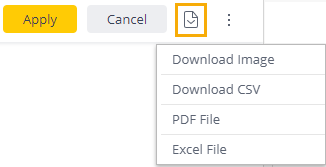
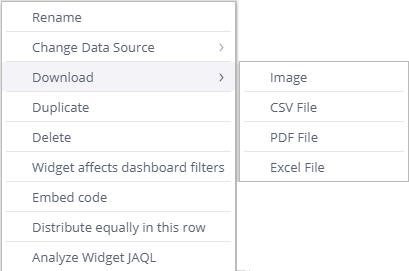
- CSV: Download the data described by the widget in a CSV file. If you have applied any filters, the filtered data is the data included in the file.
- Excel: Download the data described by the widget in an Excel file. The exported data is the data displayed in your widget. This means that any active filters, layout structure, and masks applied in Sisense to your data are exported as well. For example, if you have modified how currency, percentages, or numbers are formatted in the widget in Sisense , these are reflected in your exported Excel file. Exporting to Excel maintains your pivot's layout and structure, and values such as sub-totals, which are not maintained when you export a pivot table to CSV.
- Image: You can download a widget as an image in PNG format. The image size will reflect the size of the widget on the screen when you download it. To create a larger image, enlarge the widget space in the dashboard, or open the widget in edit view, to get a bigger picture.
- PDF: Download the widget as a PDF. For Table widgets, you can customize how your table is displayed in your PDF including the table's orientation and page size. In the PDF Report Settings, the first 14 pages of your Pivot table are displayed in the preview window, however, when you export your Pivot table to PDF, the entire table is included, up to 1,000 rows on multiple pages. For more information, see Customizing PDF Reports.
To download a widget:
-
In dashboard view, click on the widget's menu, select Download, and select the relevant file type.
-
In the edit widget view, click on the download icon, and select Download and select the relevant file type.