Connecting to Microsoft Fabric
Last updated: August 30, 2026
| Tier | Deployment |
|
|
|
Microsoft Fabric is a unified, SaaS-based analytics platform that combines data warehousing, data engineering, and business intelligence. A Fabric Warehouse or Lakehouse exposes its data through a SQL analytics endpoint that can be queried using standard SQL.
Sisense provides a native connector for Microsoft Fabric that connects to the Warehouse and Lakehouse SQL analytics endpoints using the Microsoft SQL Server JDBC driver, over TDS (TCP port 1433, with TLS enforced). You can use the connector to import data into a Sisense ElastiCube, or connect your data to a Sisense Live model.
Supported Authentication
The Microsoft Fabric connector authenticates using Microsoft Entra ID with a service principal (an Application (client) ID and Client secret, with an optional Directory (tenant) ID). This is currently the only supported authentication method, since Fabric does not support SQL logins.
Prerequisites
Before connecting to Microsoft Fabric, make sure the following are in place:
-
Fabric enablement - Fabric must be enabled with a Fabric capacity (for example, F2) or equivalent licensing, and a SQL-backed object (a Warehouse, or a Lakehouse with its SQL analytics endpoint) must exist.
-
Service principal permissions - The Service principals can use Fabric APIs tenant setting must be enabled, and the service principal needs Contributor-level access (or item-level permission) to the workspace and to the Warehouse or Lakehouse object.
-
Network connectivity - Outbound connectivity from Sisense to the Fabric SQL analytics endpoint on TCP port 1433 must be allowed.
Creating a New Connection
Use the Connection Management feature to build a data model. This can be accessed either from the new data model wizard or from the centralized connection view in the Data tab. For more information, see Data Source Connection Management.
-
In the Model Editor of your data model, click
 . The Add Data dialog box is displayed.
 -
In the Choose Connector dialog box, select an available Microsoft Fabric managed connection or create a new Microsoft Fabric connection.
The Connector page appears.
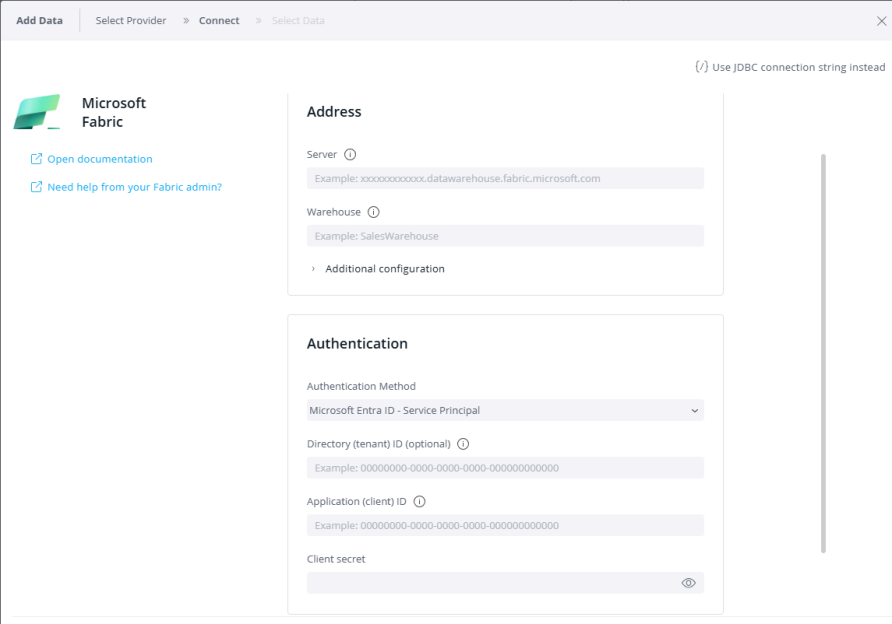
The guided form organizes the connection settings into two areas:
-
Address: Enter the Server (your Fabric SQL analytics endpoint, for example
xxxxxxxxxxx.datawarehouse.fabric.microsoft.com) and the Warehouse (the name of the target Warehouse or Lakehouse). Additional connection settings are optional and collapsed under Additional configuration. -
Authentication: The Authentication Method is set to Microsoft Entra ID - Service Principal. Enter the Application (client) ID and Client secret for the service principal, and, if required by your tenant, the Directory (tenant) ID.
Note:
If you prefer to connect using a manually composed JDBC connection string instead of the guided form, click Use JDBC connection string instead at the top of the connection dialog.
Click Open documentation in the connection form to come directly to this page, or Need help from your Fabric admin? to generate a ready-to-send request for the endpoint and permissions your Fabric administrator needs to provide.
Limitations
-
The connector supports SQL query execution only; native KQL syntax is not supported.
-
Access is limited to Warehouse and Lakehouse SQL analytics endpoints. Fabric KQL Database, Azure Blob, and hierarchical files (Parquet, Avro, ORC, JSON) are not supported.
-
Service principal authentication via Microsoft Entra ID is the only supported authentication method.