Working with Live Models
In the Model Editor, you can work with tables you have connected to from a live data source in several ways. You can manage your data on two levels - the table level and the column level. Any changes you make to your schema are only reflected in the dashboard or widgets of the live model after you publish the changes.
Table Level
You can manage tables connected to a live model through the Navigation Pane or through the table itself in the schema.
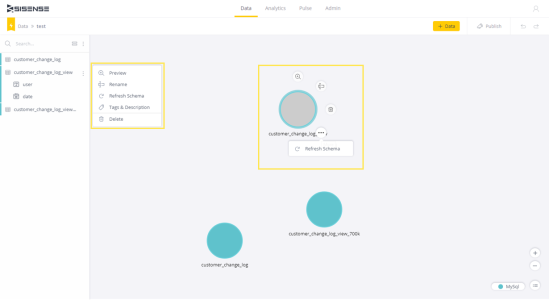
Below are the menu options available from the Navigation Pane, and the corresponding icons available in the table's menu. Either method allows you to modify and manage your tables.
| Navigation Pane | Table Icon | Description |
|---|---|---|
| Preview |

|
Displays a preview of your table's data. |
| Refresh Schema |
|
Updates the table's columns if there was a change on the data source, without having to add the table again. |
| Delete |

|
Deletes the table. |
To view your table's metadata, including its name, path, provider, location, and the number of columns it contains, hover over the table in the schema or in the Navigation Pane.
Column Level
Columns that are part of a table are displayed below the table in the Navigation Pane. On the left of the column name is an icon that indicates the column's data type.
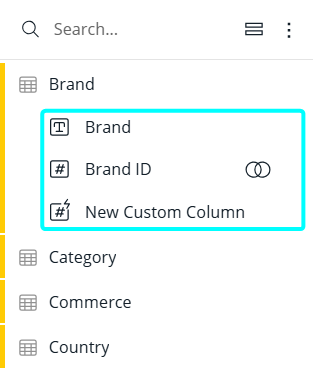
If the column is connected to another table through a relationship, a connection icon appears to the right of the column name. You can hover over the connection icon to view more details or disconnect the relationship.
Hover over any column's name to display a menu with options for managing the column:
| Menu Option | Description |
|---|---|
| Relationships |
Displays related columns side by side. See Creating and Removing a Relationship Between Tables. For Amazon Redshift and Microsoft SQL Server only. |
| Edit Relationship |
Allows you to edit a column's relationship. This option is only available when the column is connected to another table. |
| Description | Allows you to tag a column with metadata that you can use to organize your data and search for it later. See Creating Data Dictionaries. |
Limitations
-
Important - Sisense does not support Timezone-aware timestamps. Using such data types in the source connection may lead to unexpected results, and/or potential aggregation conflicts. It is therefore highly recommended to always make sure to use only “Timestamp without time zone (native timestamp)” (for example: TIMESTAMP_NTZ in Snowflake). If your DB does not separate TZ aware TS and NTZ, it is recommended to align all timestamps to a singular TZ such as UTC+0, and verify that results in Sisense match your expectations.