Changing Sisense Password
Last updated: June 11, 2026
| Tier | Deployment |
|
|
|
Each new user created in Sisense receives a password (defined by Sisense). You can change this password to a different password.
Note:
User passwords cannot be changed when connected via Single Sign On (SSO). Users connected via SSO wishing to change a password are shown the following message:
"Your account uses Single Sign On (SSO). Password is managed by your organization."
To change your password:
- Click
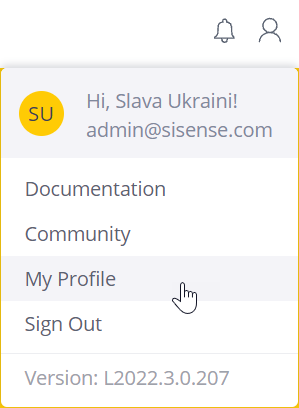
_50x39.png) located in the upper right of the screen, and from the User menu select My Profile.
located in the upper right of the screen, and from the User menu select My Profile.
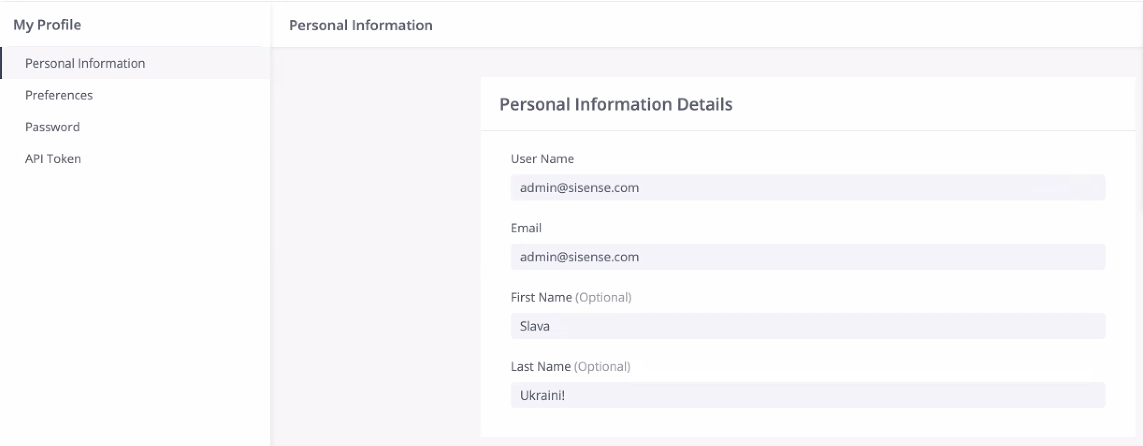
The My Profile page opens with the Personal Information Details tab selected.
The user icon changes to
 .
.
- Click Password; the Password tab opens.
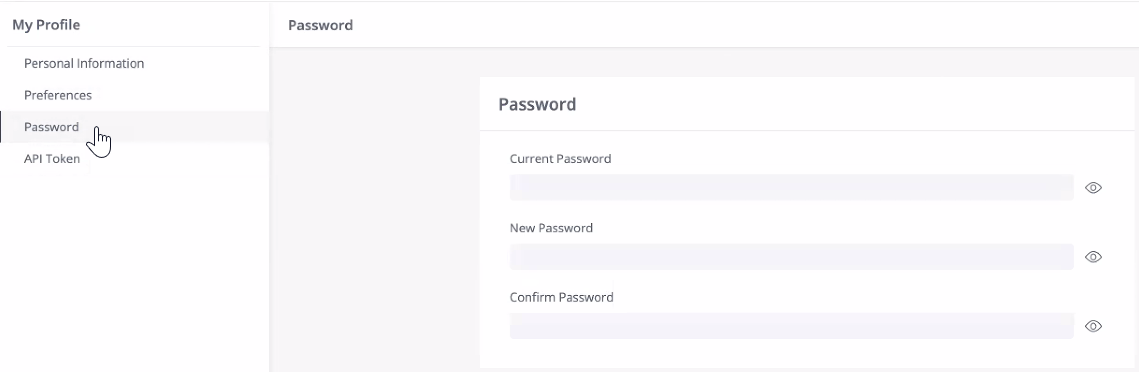
- Enter text to the three fields to set a new password.
Note:
If the system detects password setting errors, a message appears describing minimum character usage and/or character constraints.
- Click
 .
.